How to turn off Google Play Protect on Android
Pause rather than Turn off. Android offers both, and a pause switches itself back on the next day — which is usually all you need to get one app installed. Step 5 covers the difference.
Open the Google Play Store
On your Android phone, open the Play Store.
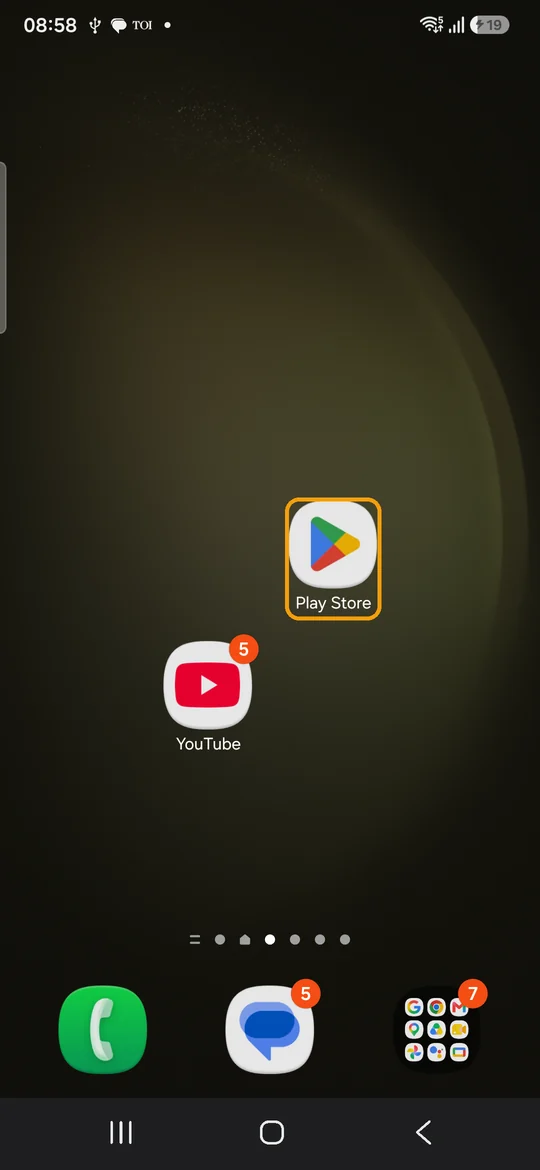
Play Protect is part of Google Play services rather than part of Android, which is why its settings are not where you would expect. Two things send people in circles here:
- It is not in Settings. Searching your phone's Settings for "Play Protect" usually finds nothing, or finds an unrelated page about Google services.
- It is not your phone maker's security app. Samsung, Xiaomi and others ship their own "Device care" or "Security" apps. Those are separate products with separate scanners, and switching one off does not affect the other.
Tap your profile icon
Tap your profile picture at the top right, beside the notifications bell.
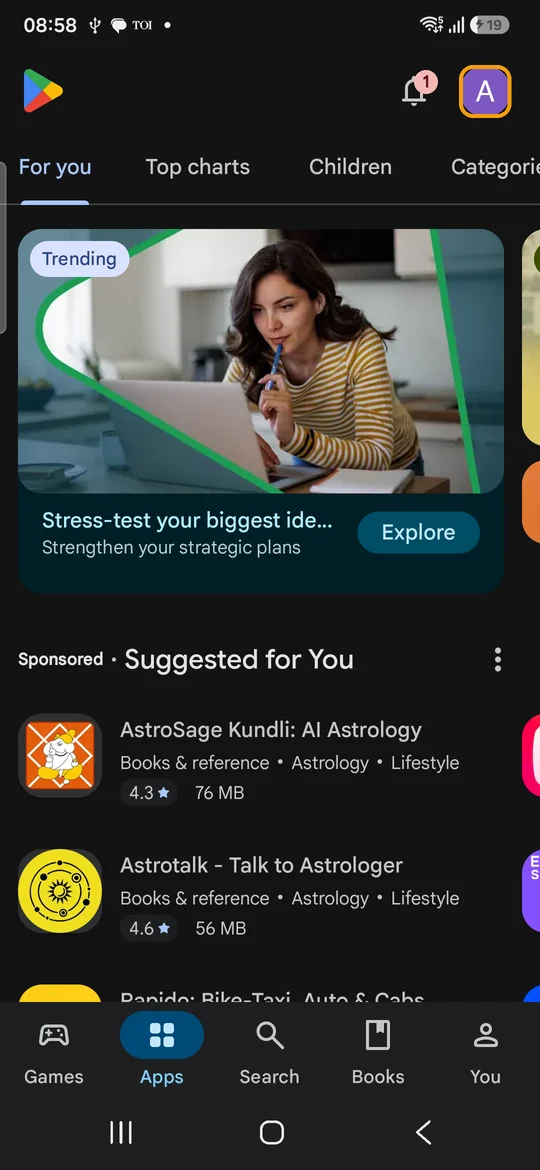
If you have more than one Google account on the phone, it does not matter which one is showing. Play Protect is a device-wide setting, not a per-account one: switch it off under one account and it is off for every account and every user profile on that phone.
Open Play Protect
In the account menu, tap Play Protect.
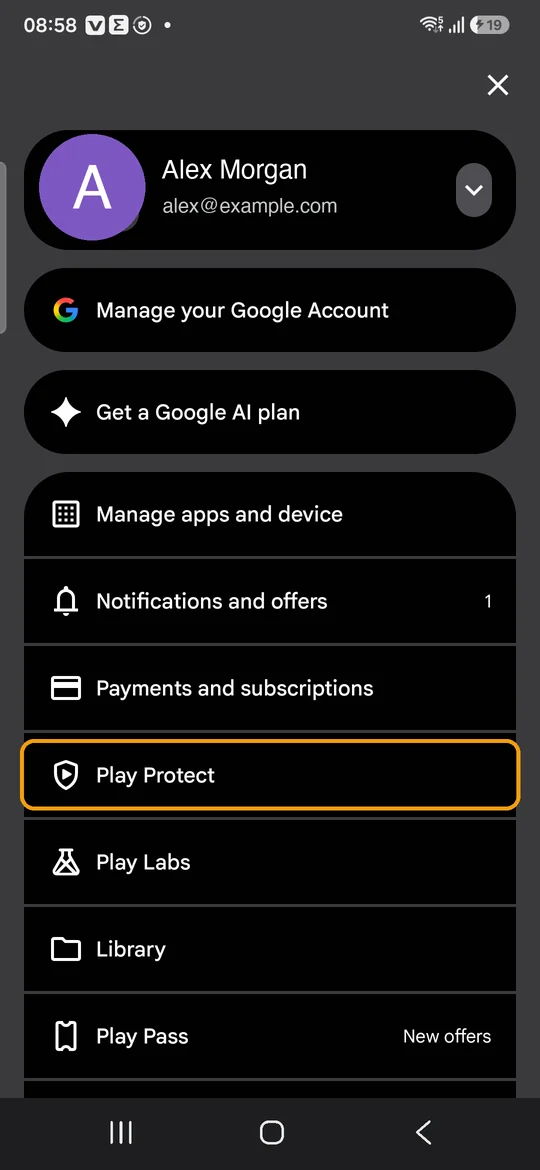
The menu is longer than one screen on most phones, so scroll if you do not see it. Do not confuse it with Manage apps and device near the top — that is the updates and storage screen, and its security card links here rather than containing these settings.
Open the Play Protect settings
Tap the gear icon at the top right — not the refresh arrow beside it.
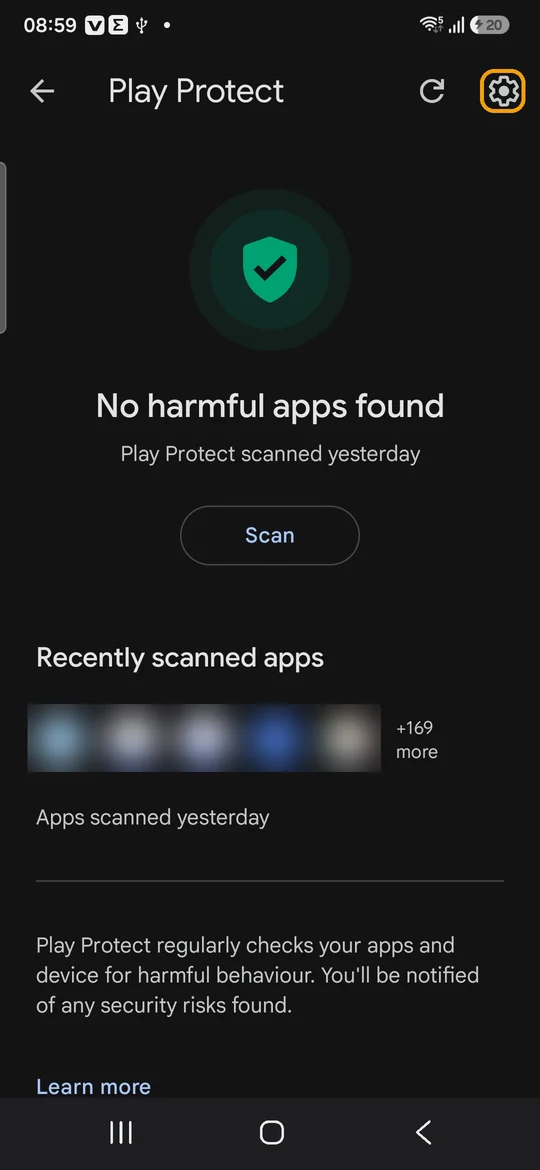
The refresh arrow starts a fresh scan rather than opening settings, and on a phone with a lot of apps it can take a minute and leave you back where you started.
While you are here, glance at Recently scanned apps. If the app you are trying to install already appears in that list, Play Protect has seen it and let it through — which means Play Protect is probably not what is blocking you, and you may not need the rest of this guide.
Turn off "Scan apps with Play Protect"
Tap the switch beside Scan apps with Play Protect.
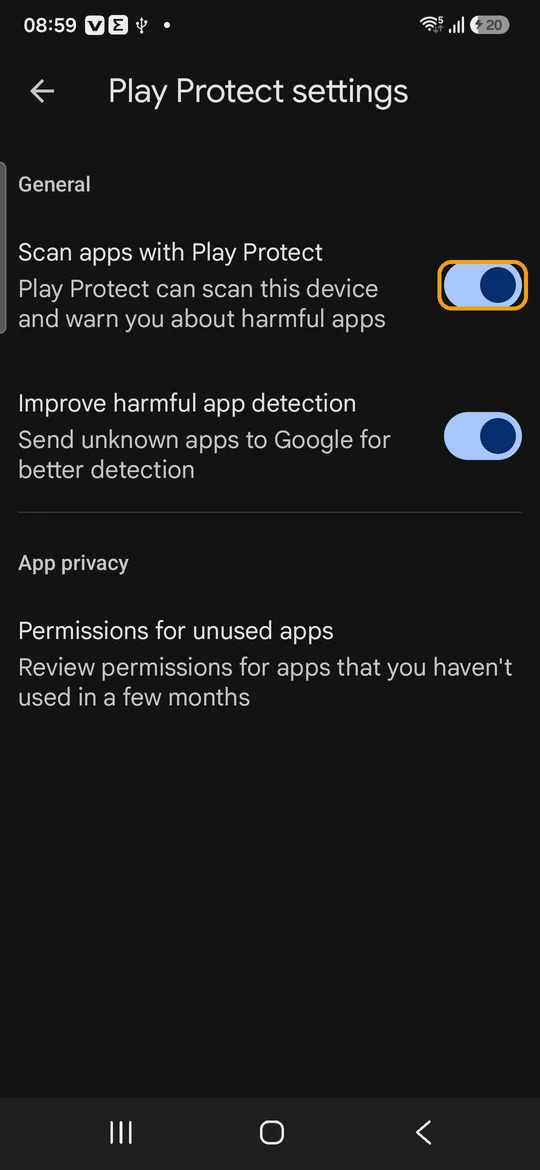
This is the setting that matters — the one that governs both the daily sweep and the check that runs when you install something. Nothing happens immediately: Android intercepts the change and asks what you actually want.
Choose Pause. Scanning turns itself back on the next day.
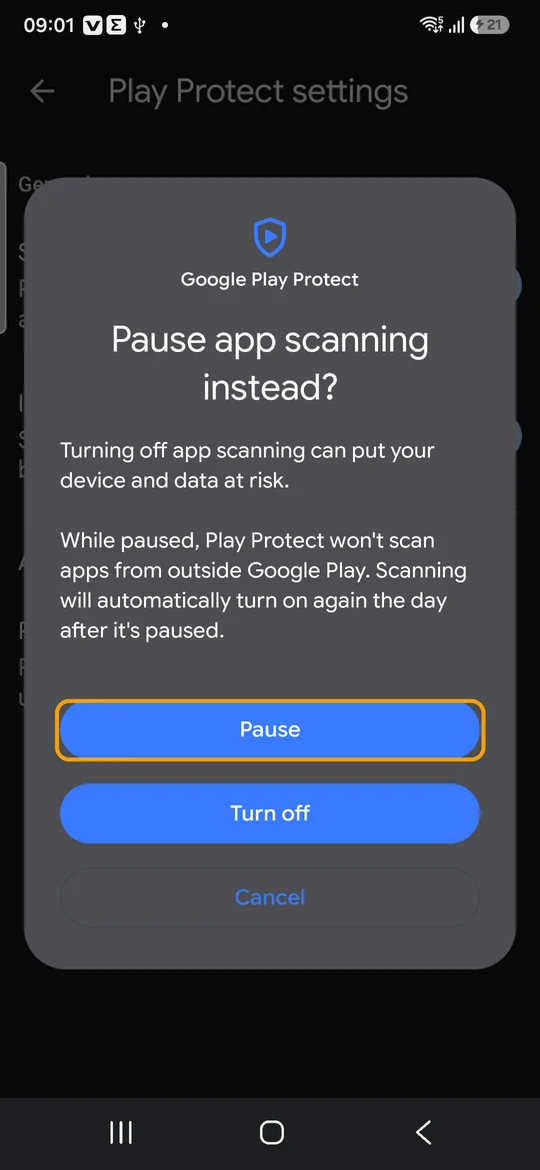
The dialog is titled Pause app scanning instead? and the order of its buttons is not accidental — Android lists the one it wants you to pick first.
- Pause. Scanning stops, and in Android's own words, "scanning will automatically turn on again the day after it's paused". If you are installing one app, choose this. It is the only option you cannot forget to undo.
- Turn off. Scanning stops and stays off until you turn it back on yourself. Choose this only if you have a reason that outlasts today.
- Cancel. Nothing changes.
Optional — turn off "Improve harmful app detection"
Only if you want to: switch off Improve harmful app detection on the same screen.
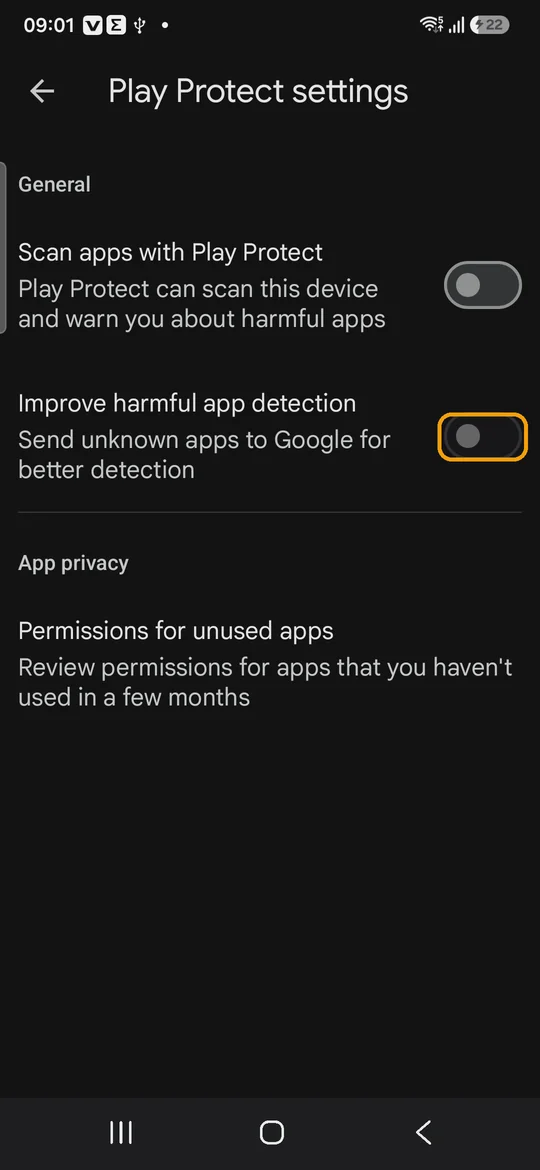
This second switch is a different thing from scanning, and the distinction is worth getting right.
What it does: when Play Protect meets an app it does not recognise, it uploads that app to Google to be analysed. That is how unknown apps become known ones, and it is the setting people mean when they talk about Play Protect "sending your apps to Google".
What it does not do: it does not block anything. Turning it off will not unblock an install that Play Protect refused, and leaving it on will not cause one. If your only goal is to get an app installed, step 5 is enough and you can skip this.
How to turn Play Protect back on
If you chose Pause, there is nothing to do. It comes back by itself the day after, with no prompt.
If you chose Turn off, retrace the same path — Play Store → profile icon → Play Protect → gear — and switch Scan apps with Play Protect back on. There is no confirmation dialog in this direction; it takes effect at once. If you also switched off Improve harmful app detection in step 6, switch that back on too if you want it.
Apps installed while it was off are not exempt — they get checked like anything else on the next sweep.
What Play Protect actually does
"Play Protect" covers three separate jobs, and the steps above only switch off one of them.
It scans apps on your device. About once a day it checks what you have installed against Google's list of known-bad behaviour. This is the part step 5 switches off.
It checks apps at install time. When you install an APK from outside the Play Store, Play Protect inspects it before Android will let it run. This is the part that stops sideloaded installs — also switched off by step 5.
It sends unrecognised apps to Google. A separate switch, covered in step 6, and turning it off does not unblock anything.
There is a fourth thing it does that you cannot turn off: Play Protect certification, which is about whether your device model is licensed by Google. That is a property of the phone, not a setting, and nothing here changes it.
What you give up while it is off
Less than the warning implies, and more than nothing.
While scanning is off, Android stops checking new installs against Google's database and stops its daily sweep. It does not disable any other protection — your phone's security updates, permission prompts, and the "install unknown apps" permission all still apply, and you still approve every install by hand.
The practical risk is narrow but real: if you install something genuinely harmful during the window, nothing will flag it. That is why pausing for a day beats switching it off indefinitely.
Installing FlashDroid Kid?
If you landed here while setting up FlashDroid, this is usually why. The FlashDroid Installer is not distributed through the Play Store, so Android treats it as an app from an unknown source and Play Protect may inspect, warn about, or refuse it.
Before you change any settings:
- Try the install first. Play Protect does not block every sideloaded app. A warning you can tap past is not the same as a block, and most people get through without touching these settings at all.
- Check which prompt you are actually looking at. Three different things stop people and only the third is Play Protect. Chrome warns that the file "can harm your device" when it downloads. Android then says your phone "isn't allowed to install unknown apps from this source" and offers Settings — that is the install unknown apps permission, not Play Protect. Only a message naming Play Protect, or a blocked install with no explanation, is this guide's problem.
- Pause rather than turn off. The install takes a minute; the pause expires by itself tomorrow.
The download page has both apps, and the getting started guide covers installation, permissions and pairing in order.
FlashDroid Kid runs normally with Play Protect enabled. The scanner only gets in the way during installation — once the app is on the phone and paired, having Play Protect on changes nothing about how it works.
Related guides
See how FlashDroid works
Set the day’s limit together, keep distractions out of study hours, and switch to Exam Day in one tap. Works whether the phone is theirs or yours.
See how it works