How it works
FlashDroid, step by step.
From the download to the first bedtime. About five minutes of set-up, then a tour of every feature and the fixes for the things that trip people up.
Android today · iPhone later · Parent app on Google Play · Child app installs directly
Part 1
Set up your own phone
Start on your phone, not your child’s. Two minutes.
- 1
Install FlashDroid from Google Play
Search for FlashDroid on Google Play, or use the button on our download page. This is the parent app: everything you set and see lives here.
- 2
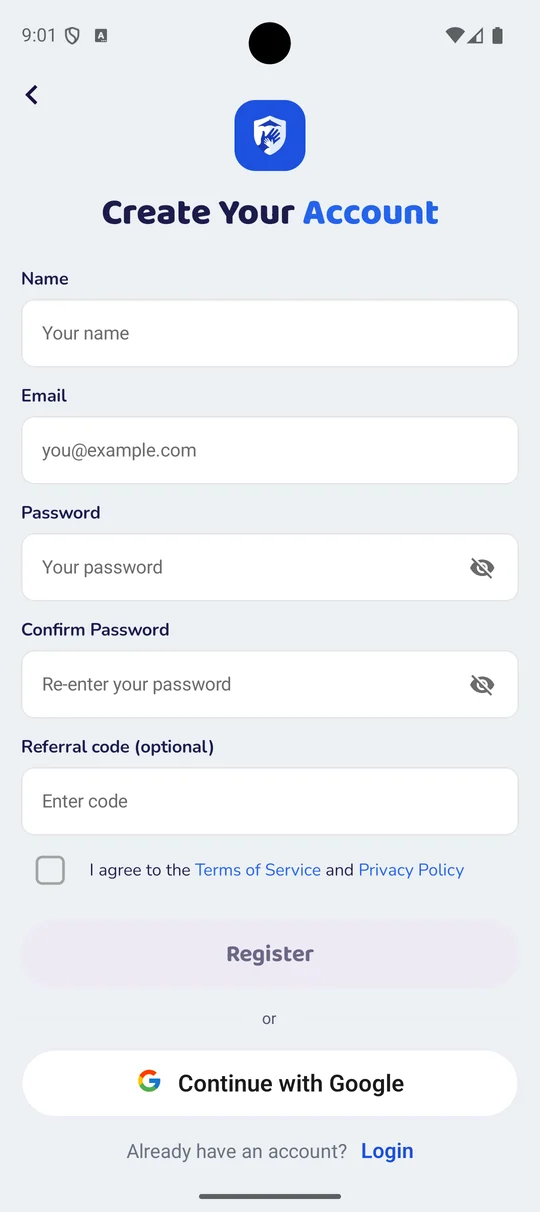
Create your account
Open FlashDroid and sign up with your email, or continue with Google. One account is enough for the whole family; the other parent joins the same account later, from their own phone.
- 3
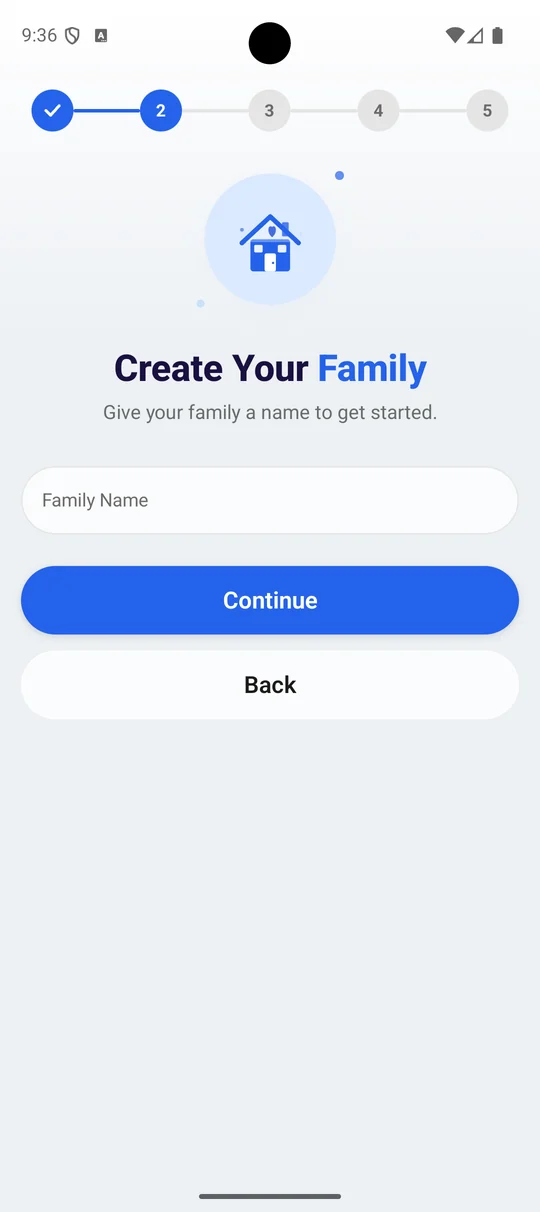
Name your family
The first screen after you register is Create Your Family: give your family a name to get started. Everyone you add later — your child, the other parent — belongs to this one family.
- 4
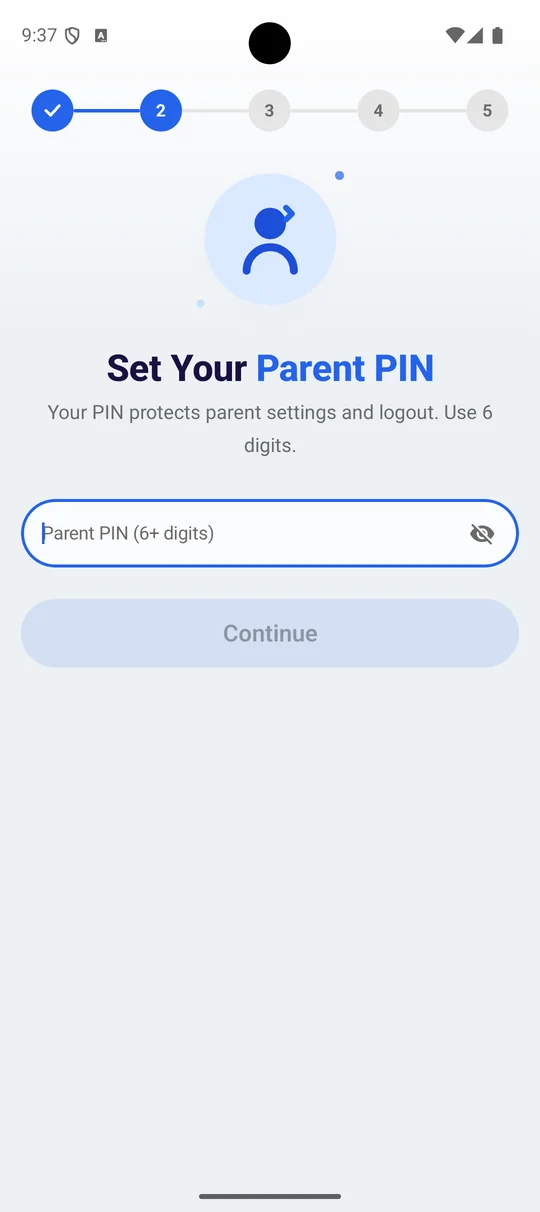
Set a parent PIN
Six digits, on the Set Your Parent PIN screen. It guards the parent settings and signing out, so your child cannot undo what you set from their own phone.
Pick something your child will not guess, and not the code they watch you type to unlock the phone.
- 5
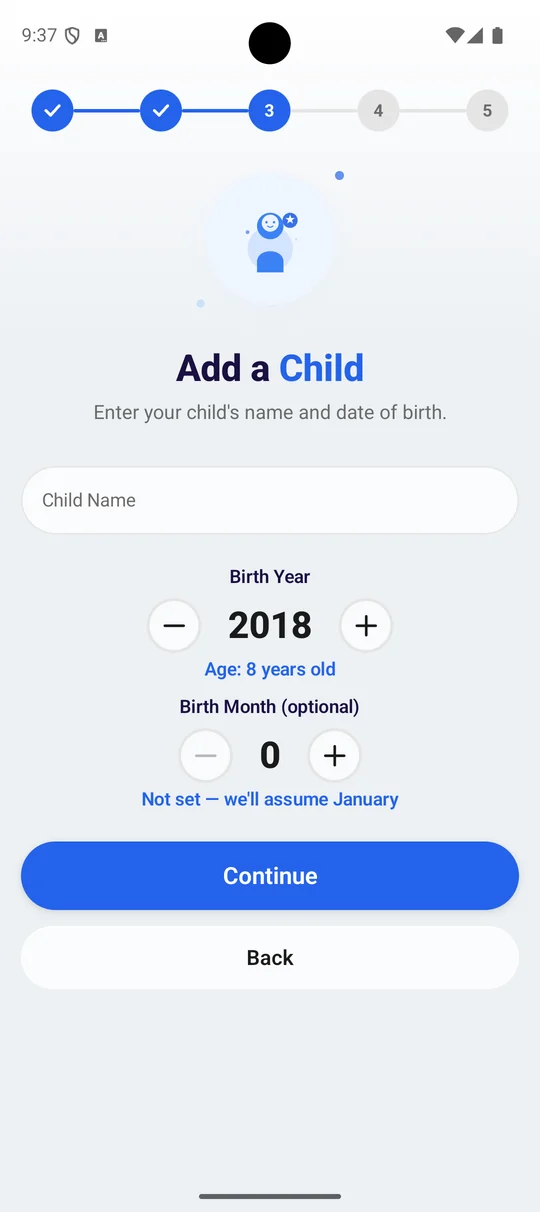
Add your child
A name and a birth year on the Add a Child screen — it works out the age as you change the year. The birth month is optional; leave it and FlashDroid assumes January. The age is what sets the starting points for limits and the web filter.
- 6
Send the app to their phone
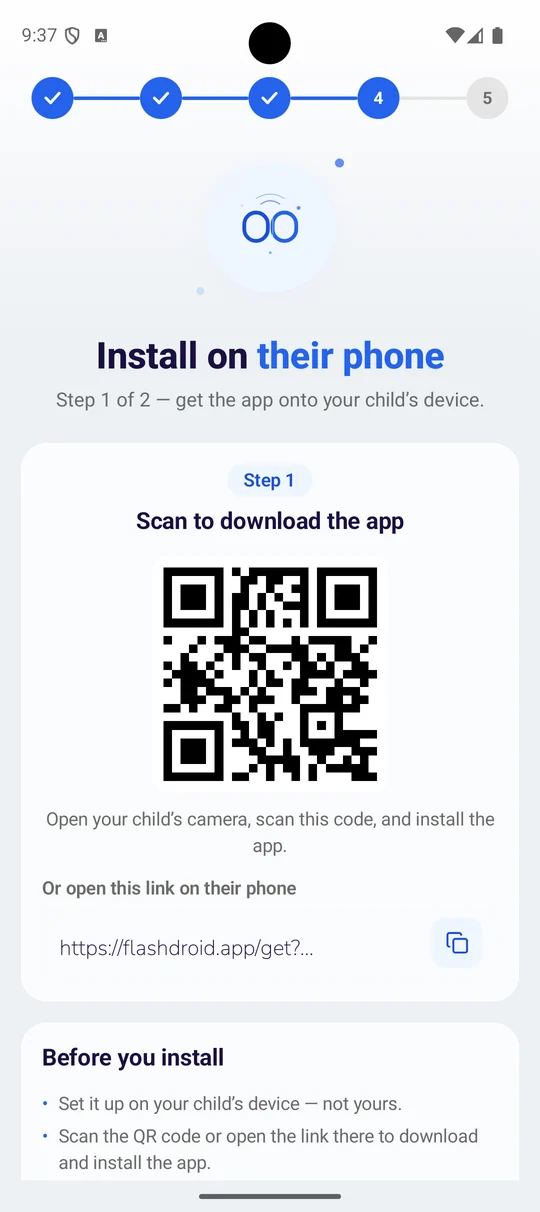
Install on their phone is step 1 of 2. FlashDroid shows a QR code and a link — open your child's camera, scan the code, and the download starts on their device. The screen says it plainly: set it up on your child's phone, not yours.
- 7
Keep the pairing code to hand
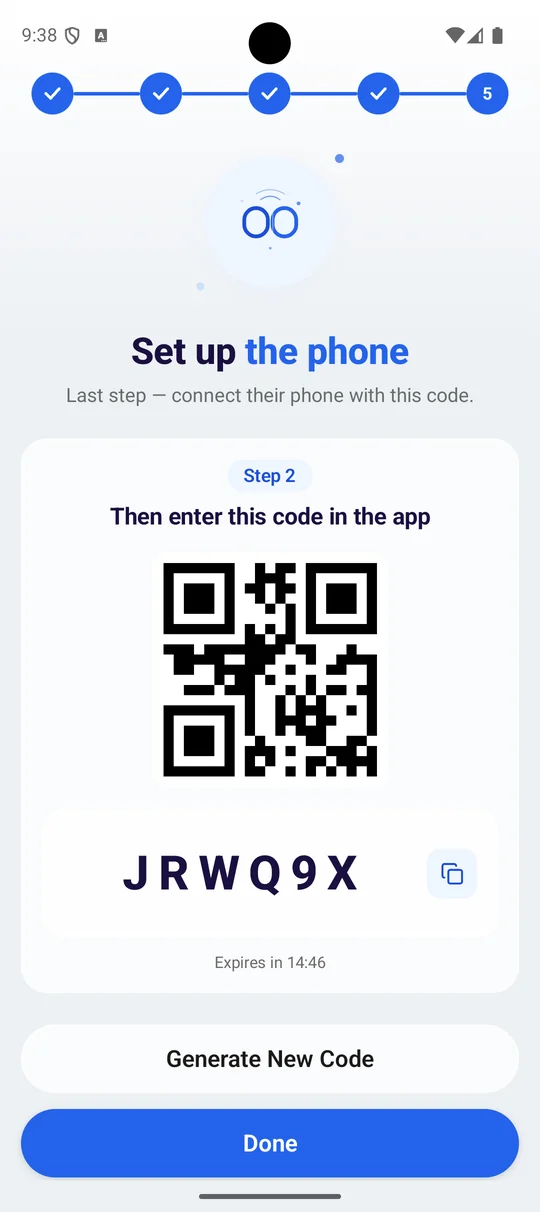
Step 2 of 2 is Set up the phone: a six-character code, and the same code as a QR. You will type or scan it on the child's phone at the end of Part 2. It expires after about fifteen minutes, and Generate New Code gives you another.
Keep this screen open. You will need the code in Part 2, and it is easier to read it off your phone than to remember it. If it runs out while you are installing, tap Generate New Code.
Part 2
Set up your child’s phone
Now pick up your child’s phone. FlashDroid Kid does not come from Google Play; a small wizard installs it directly, then you can remove the wizard.
- 1
Open the link on your child’s phone
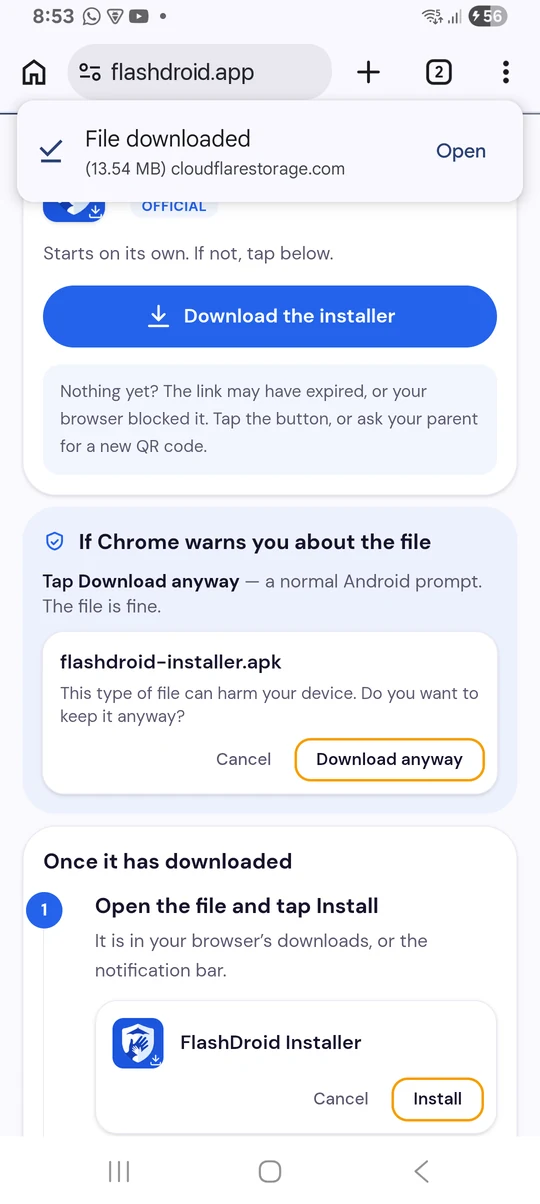
Scan the QR code from your pairing screen with the child’s phone, or type the short link into its browser. The page downloads FlashDroid Wizard, the installer.
Android may warn that the file could be harmful. That warning appears for any app installed outside Google Play. Tap Download anyway.
- 2
Allow the wizard to install apps
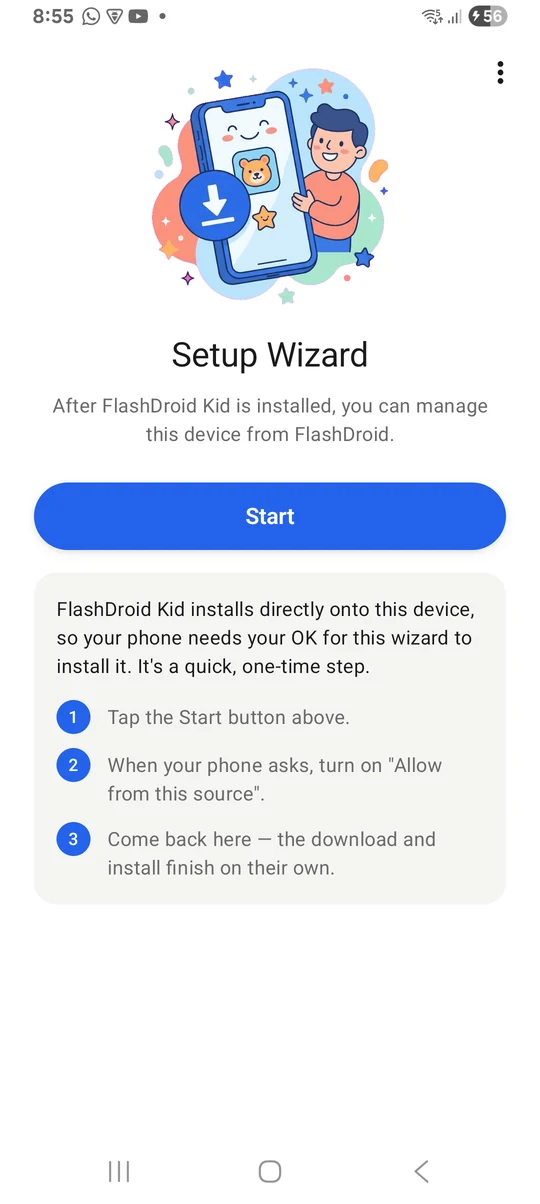
Open the downloaded file and tap Start. The phone asks you to turn on “Allow from this source” for FlashDroid Wizard. Turn it on and come back; the wizard carries on by itself.
This is a one-time step. FlashDroid Kid installs directly onto the phone, so Android needs your say-so for the wizard to do it.
- 3
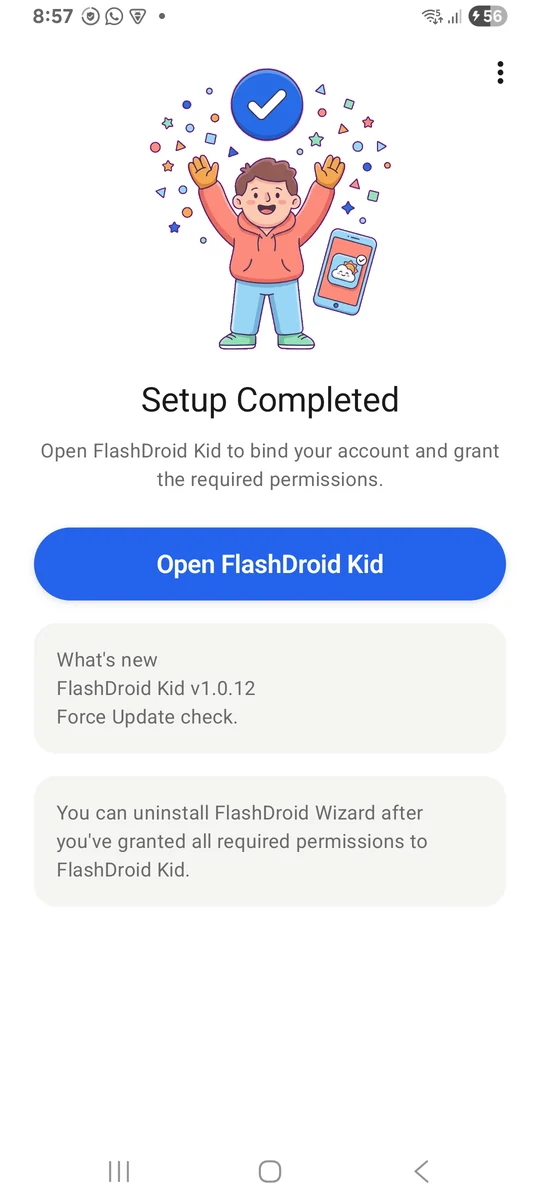
Wait for “Setup Completed”
The wizard downloads and installs FlashDroid Kid on its own, then shows Setup Completed. Tap Open FlashDroid Kid.
- 4
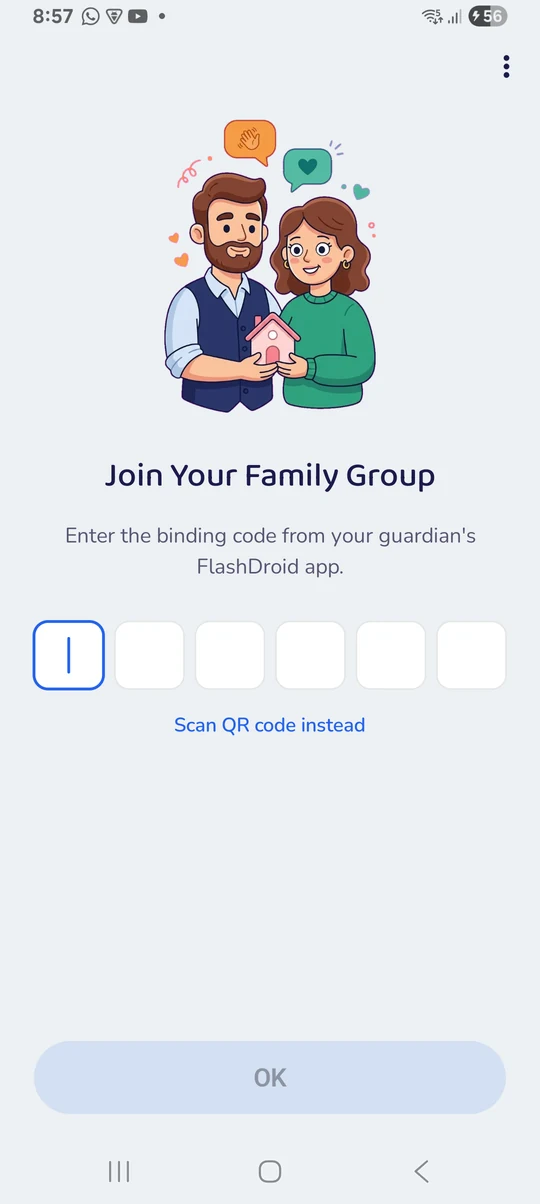
Join your family group
FlashDroid Kid asks for the binding code from your FlashDroid app. Type it, or tap Scan QR code and point the camera at your pairing screen.
- 5
Fill in the child’s profile
A name, an avatar and a date of birth. The age sets sensible starting points for the limits, which you can change any time.
- 6
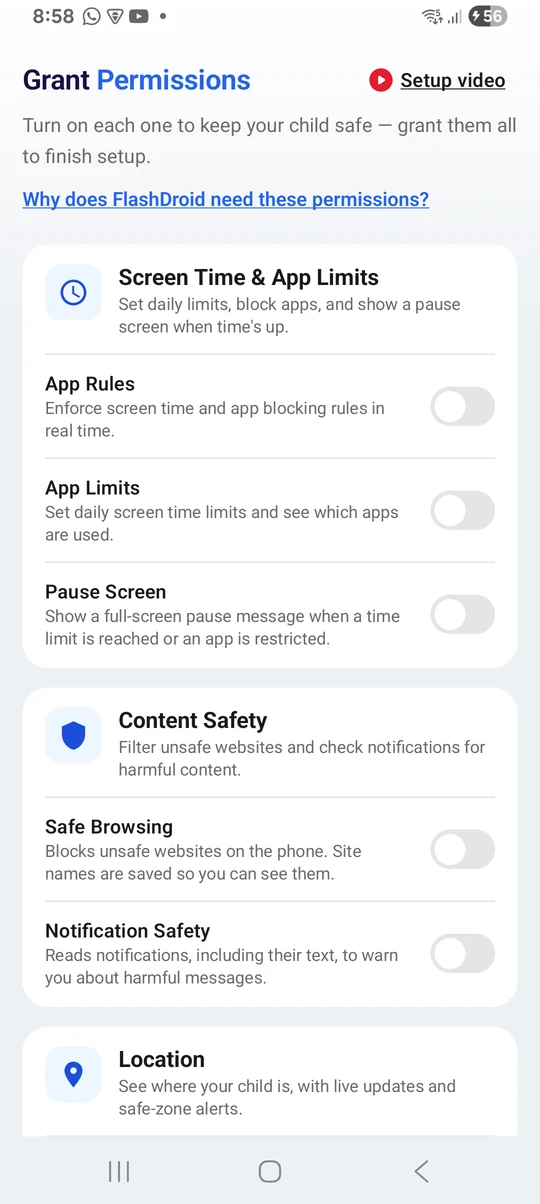
Grant the permissions, one by one
FlashDroid Kid asks for each permission it needs and explains why before it asks. Screen time and app limits need Accessibility and Usage access; Location View needs Location; the live views need Camera and Microphone. The Notification Log is off unless you turn on Notification access yourself.
On Android 13 and newer, a permission may be greyed out with the words “restricted setting”. Open the phone’s Settings, find FlashDroid Kid under Apps, tap the three-dot menu and choose Allow restricted settings, then come back.
- 7
Remove the wizard
Once every permission is granted, the wizard has done its job. You can uninstall FlashDroid Wizard; FlashDroid Kid stays.
Part 3
Agree the rules together
This is the part that makes everything else work. Five minutes with your child, before the first limit.
- 1
Show them the child app
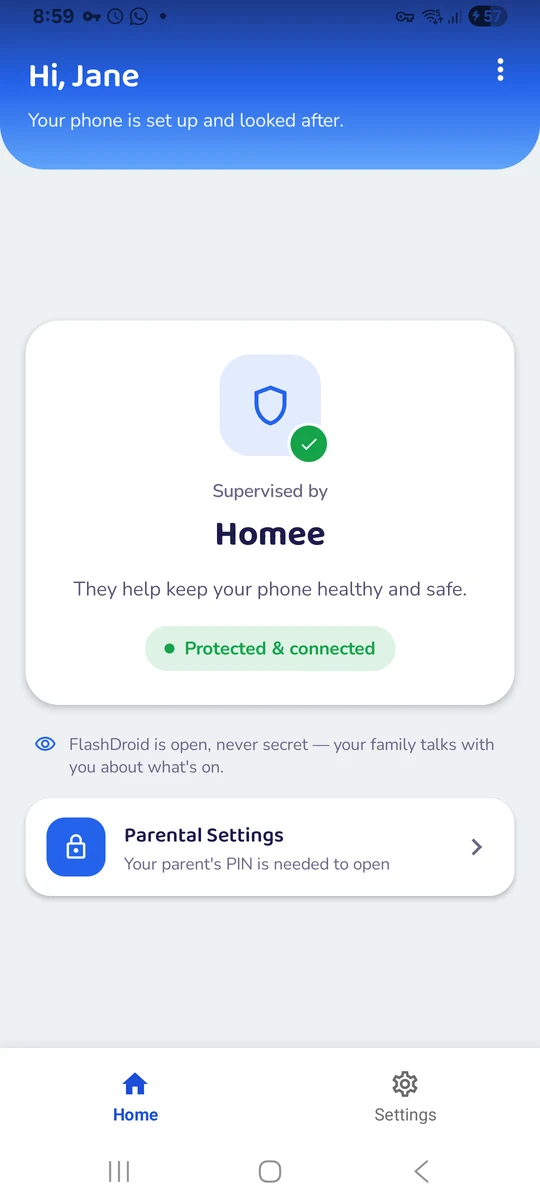
FlashDroid Kid sits on their phone under its own name. Its home screen says who supervises the phone and that FlashDroid is open, never secret. Let them read it.
- 2
Tell them what you can and cannot see
Every feature page on this site has a section called “what it does not do”, written so you can repeat it to your child. Which app and for how long, yes. Their messages, never.
- 3
Set the first limits with them
A daily limit and a bedtime, decided together, hold far better than ones announced afterwards. Start generous; you can tighten later.
Consent is recorded once, at pairing. After that the app does not ask again, but their phone always shows a notice when you open a live view, so nothing is ever a surprise.
Part 4
Use each feature
What each one does, where to find it in your FlashDroid app, and what it does not do. Each name links to its full page.
- What it does
- Live camera, screen, and sound — for when a call or message goes unanswered.
- How to open it
- Open your child’s page and tap Family Safety View, then choose Screen, Camera or Sound. Their phone shows a notice the whole time.
- What it does not do
- Live, never recorded · Snapshots are kept for 30 days · Not their messages
- What it does
- See where they are. Know when they arrive.
- How to open it
- Open your child’s page and tap Location. Use Places to mark a safe zone, and Timeline for the day’s journeys.
- What it does not do
- You choose when to look · Last-known when the phone is offline · Your places stay yours
- What it does
- Set screen-time limits that fit your family.
- How to open it
- Open your child’s page and tap Screen Time. Set the daily limit and the bedtime hours; different days can have different rules.
- What it does not do
- It isn’t a punishment button · It doesn’t read anything · Calls remain available
- What it does
- See which apps take up their time.
- How to open it
- Open your child’s page and tap App Activity. Switch between Today and This week; tap any app to limit or block it.
- What it does not do
- It doesn’t look inside apps · It doesn’t block anything · It counts the phone, not the person
- What it does
- Block distracting apps. Keep learning apps available.
- How to open it
- Open your child’s page and tap App Blocker. Choose Allow, Limit or Block per app, and mark the ones that must always stay open.
- What it does not do
- It doesn’t cut them off · It isn’t an instant kill switch · It doesn’t look inside apps
- What it does
- Get important updates from your child’s phone.
- How to open it
- Tap the bell at the top of FlashDroid. Filters let you show only limits, apps or places.
- What it does not do
- No alert isn’t an all-clear · They don’t carry their messages · You can’t fine-tune the list
- What it does
- Understand their screen time, day by day.
- How to open it
- Open your child’s page and tap Reports. Page through days and weeks; the evening summary arrives as a notification at the time you choose.
- What it does not do
- They don’t show contents · They don’t compare weeks for you · They aren’t a score · They measure the phone
- What it does
- See through their phone’s camera when you need a check-in.
- How to open it
- Open Family Safety View and tap Camera. Flip between front and rear; End session closes it on both phones.
- What it does not do
- It doesn’t stay on · It isn’t recorded · A camera can’t see everything
- What it does
- See your child’s screen from your phone.
- How to open it
- Open Family Safety View and tap Screen. The app they are in is named at the top; End session closes it on both phones.
- What it does not do
- It isn’t always on · It isn’t recorded · No keyboard log or chat history · Some screens stay blank
- What it does
- Ask for a photo or screenshot — now, or on a schedule.
- How to open it
- Open Family Safety View and tap Snapshots. Ask for a screen snapshot, a camera photo or a short clip; it waits for you in the gallery.
- What it does not do
- It captures on request or on your schedule · It shows one moment · Kept 30 days, then deleted
- What it does
- Hear the room they’re in, when a message can’t answer.
- How to open it
- Open Family Safety View and tap Sound. A few seconds is usually enough; End session closes it on both phones.
- What it does not do
- It doesn’t stay on · It isn’t recorded · Sound gives context, not certainty · It isn’t a phone tap
- What it does
- Review notifications received on your child’s phone.
- How to open it
- Turn on Notification access in FlashDroid Kid first (Part 2, step 6). Then open your child’s page and tap Notification Log.
- What it does not do
- It doesn’t open their apps · It doesn’t read what they type · It skips music and media · Sixty days, then gone
- What it does
- Help block harmful websites on your child’s phone.
- How to open it
- Open your child’s page and tap Web Filter. Switch categories off, add sites by name, and see what was blocked under Activity.
- What it does not do
- It filters browsing, not apps · It works by site name, not by page · No filter catches everything
Part 5
If something is not working
The download page says the file might be harmful+
Android shows that for any app that does not come from Google Play. FlashDroid Kid installs directly, which is normal for child apps of this kind. Tap Download anyway and carry on.
The wizard is stuck on “Almost there”+
The “Allow from this source” switch is still off. Tap Open settings, turn it on for FlashDroid Wizard, and return to the wizard; it continues on its own.
A permission is greyed out+
That is Android 13’s restricted-settings rule. In the phone’s Settings, open Apps, find FlashDroid Kid, tap the three-dot menu, choose Allow restricted settings, then grant the permission again.
I cannot find FlashDroid Kid on the phone+
It is in the app list under its own name; it is never hidden. If the wizard is still installed, open it and tap Open FlashDroid Kid.
The map says “last seen” a while ago+
The child’s phone is offline or in a low-power state. FlashDroid Kid checks in at intervals; opening the map asks for a fresh position when the phone is reachable.
My child wants the app removed+
Removing FlashDroid Kid asks for the parent PIN. Talk first: the point of the app is an agreement, and a child who wants out usually has a reason worth hearing.
Still stuck? Write to us and say which step you are on.


Set up FlashDroid today.
Download the parent app, pair your child’s phone and choose the protections your family needs.
- Agreed during pairingChild app remains visible
- Clear data controlsRequest deletion when needed
- Guided setupTwo apps and one pairing code
- Everything includedNo features are kept for a higher-priced plan.