How to Keep FlashDroid Kid Running in the Background on OnePlus?
OnePlus's OxygenOS shares its power management with OPPO's ColorOS — an "intelligent" battery controller that decides for itself which apps to close. It is also known for quietly reverting these settings after updates, so treat this page as one to come back to, not a one-off.
The steps apply to Android 12 and above. OxygenOS has renamed menus between versions — if a label below doesn't match your child's phone exactly, the Settings search box will find its current name.
All of these settings live on the child's OnePlus — the phone with the FlashDroid Kid app on it.
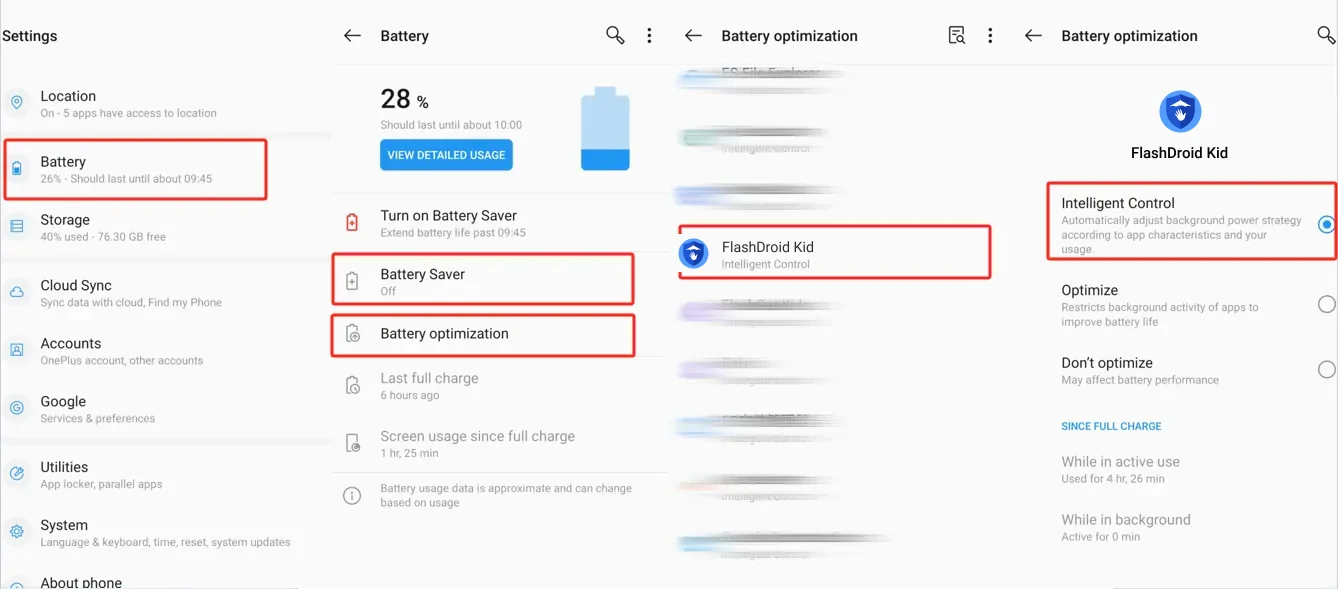
Step 1 — Battery optimization: Don't optimize
Go to Settings → Battery → Battery optimization and tap FlashDroid Kid. You will see three options — Intelligent Control, Optimize and Don't optimize. Choose Don't optimize. Intelligent Control is the default, and it is exactly the automatic killer this guide exists to switch off.
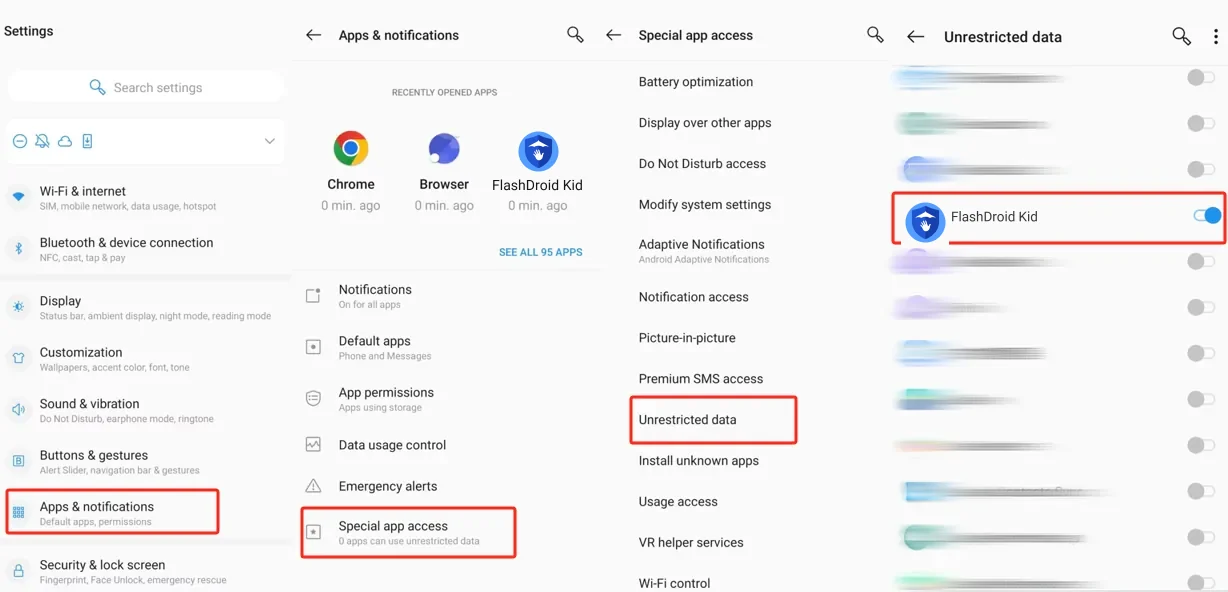
Step 2 — Unrestricted data
Go to Settings → Apps & notifications → Special app access → Unrestricted data and switch FlashDroid Kid on, so Data Saver can never cut its background connection.
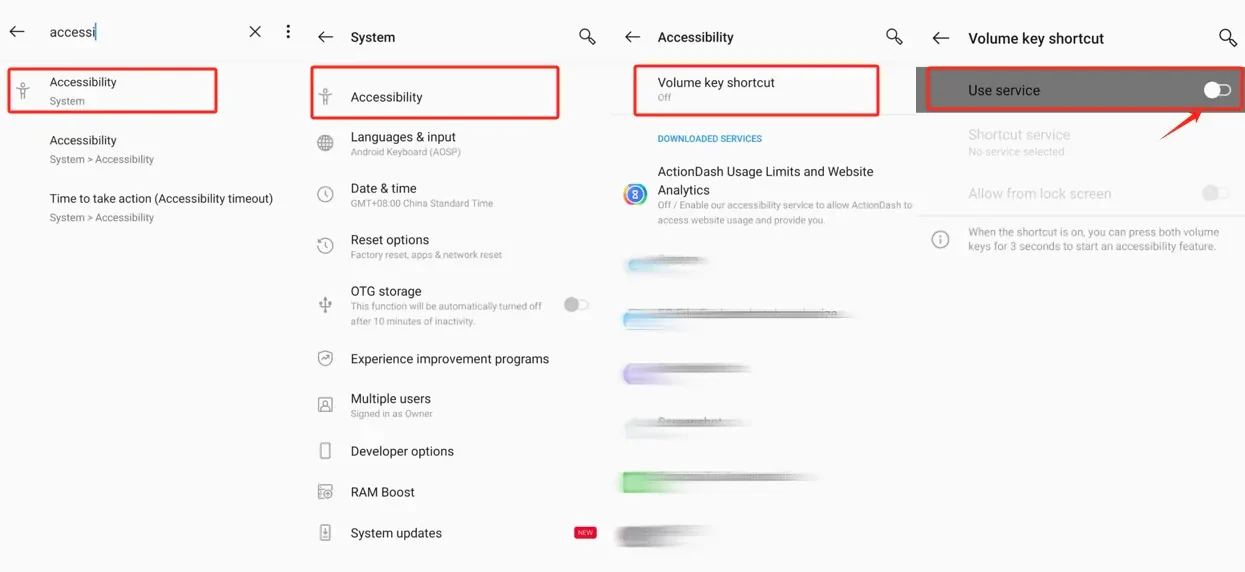
Step 3 — Know where Accessibility lives
FlashDroid Kid uses an accessibility service to apply Screen Time limits and App Blocker rules. If the phone ever disables it, this is where it is restored: search accessibility in Settings, or go to Settings → System → Accessibility, and check FlashDroid Kid's service is on under Downloaded services. Nothing to change today if it is already running. Just know the route.
Check it worked
Your child's phone should show online in the FlashDroid app and stay online overnight, with no gaps in reports over 48 hours.
OxygenOS is known to revert battery optimization settings on its own — after updates, and sometimes without one. Re-check step 1 now and then, and after every system update on your child's phone.
Something still off? Start from the overview — How to keep FlashDroid Kid running in the background on Android.
Related guides
See how FlashDroid works
Set the day’s limit together, keep distractions out of study hours, and switch to Exam Day in one tap. Works whether the phone is theirs or yours.
See how it works