How to Keep FlashDroid Kid Running in the Background on Pixel?
Pixel phones run Android exactly as Google ships it — no manufacturer layer of app killers on top. That makes this the shortest guide in the series: there is no autostart list and no sleeping-apps sweep to worry about. What remains are Android's own two levers, battery and data, and both need to be set once on the child's Pixel.
These steps apply to Android 12 and above — the menus have kept the same names through Android 16.
All of the settings below live on the child's device — the one with the FlashDroid Kid app installed. Nothing here changes on your own phone.
Step 1 — Let FlashDroid Kid through Data Saver
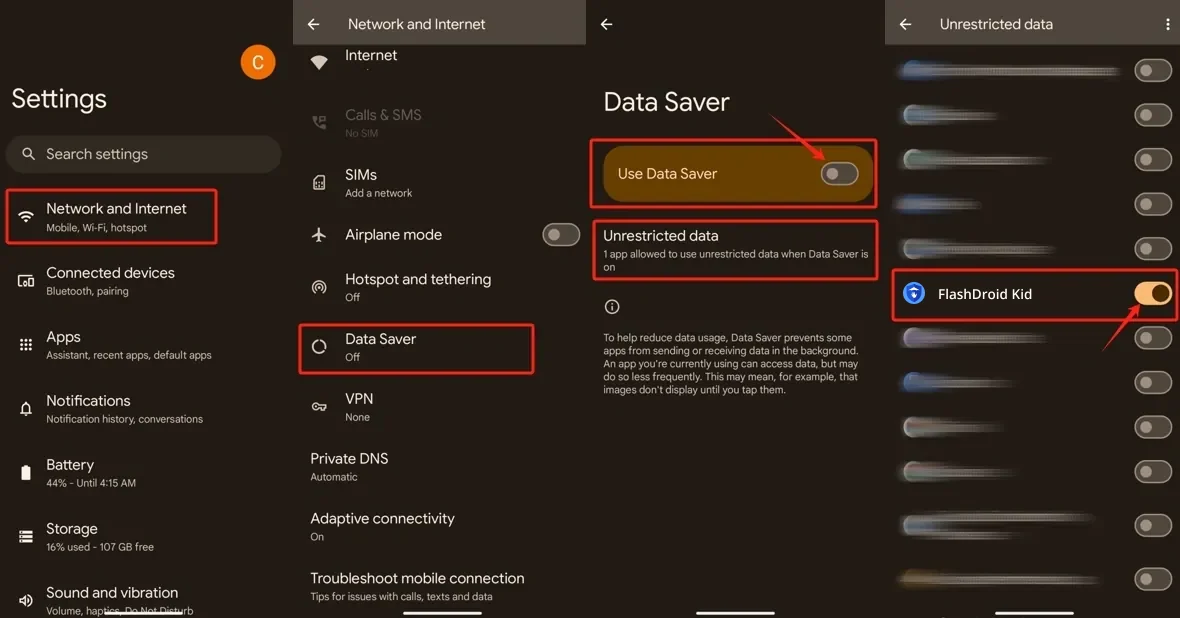
Data Saver blocks background mobile data per app, and FlashDroid Kid needs background data to report to the FlashDroid app. Go to Settings → Network and Internet → Data Saver → Unrestricted data and switch FlashDroid Kid on. This keeps FlashDroid Kid reporting even if Data Saver is ever switched on later.
Step 2 — Open FlashDroid Kid's app settings
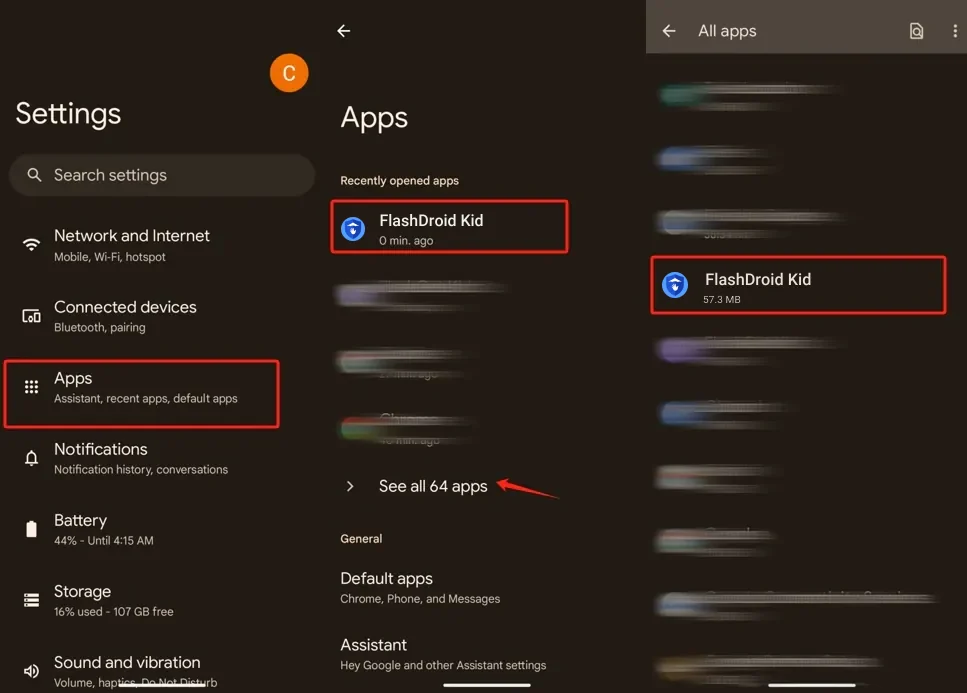
The next two steps live in FlashDroid Kid's own app page. Go to Settings → Apps → See all apps and tap FlashDroid Kid.
Step 3 — Turn on background data
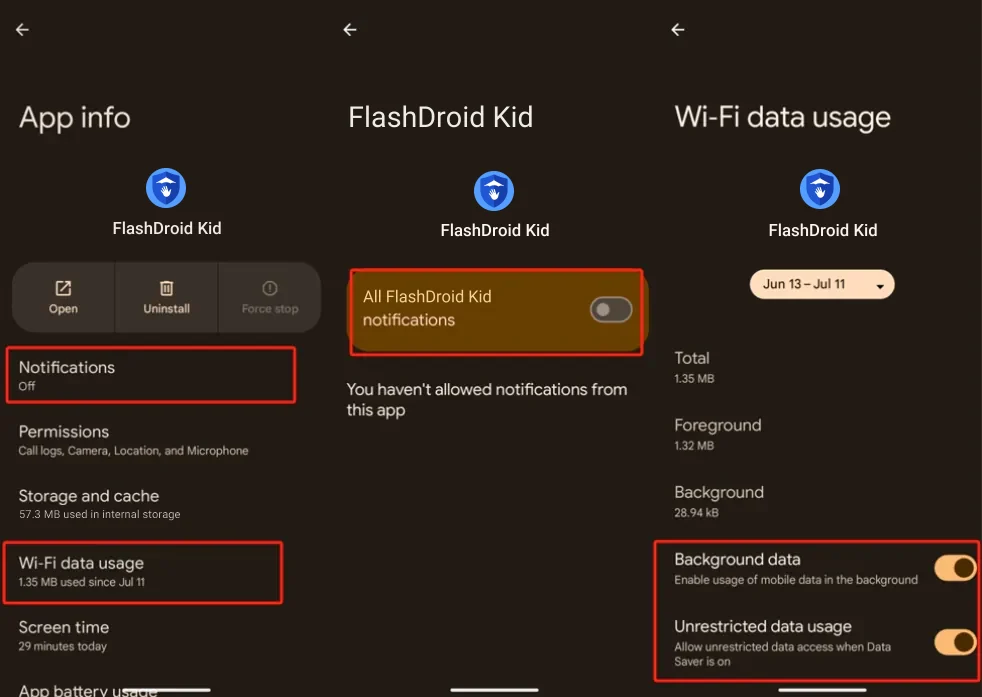
On FlashDroid Kid's App info page, open the data usage entry (Wi-Fi data usage / Mobile data) and make sure both toggles are on:
- Background data — enable usage of data in the background
- Unrestricted data usage — allow data access when Data Saver is on
Step 4 — Allow unrestricted battery usage
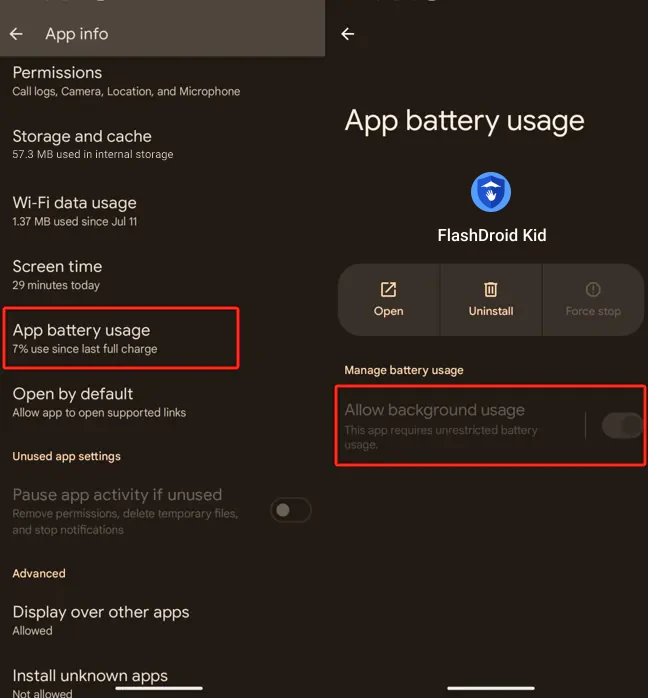
Still on FlashDroid Kid's App info page, tap App battery usage and make sure Allow background usage is on, with battery usage set to Unrestricted.
On most devices you will find FlashDroid Kid has already requested this — the setting shows "This app requires unrestricted battery usage" and cannot be turned down. That is the correct end state; if it is editable on your device, set it to Unrestricted yourself.
While you are on this page, check Pause app activity if unused is off for FlashDroid Kid — otherwise Android may strip the app's permissions after a few months of the child never opening it (which is normal — children don't open FlashDroid Kid).
Step 5 — Keep Battery Saver off
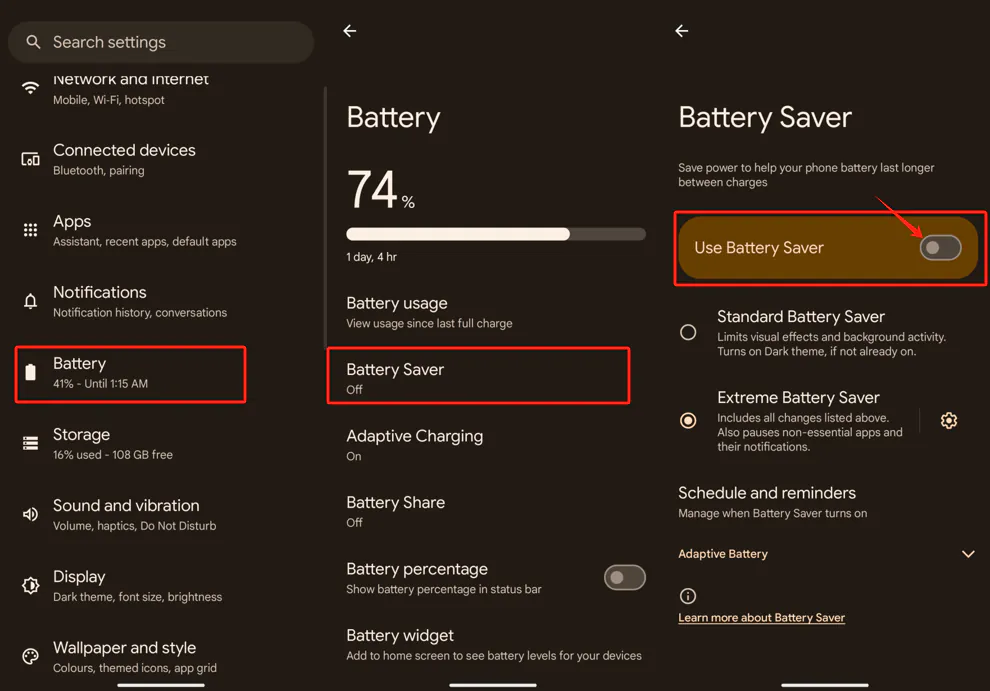
Finally, go to Settings → Battery → Battery Saver and make sure Use Battery Saver is off. Extreme Battery Saver in particular pauses apps outright — if it activates, FlashDroid Kid stops until the phone is next charged.
If your child's battery genuinely needs saving, prefer Standard over Extreme, and expect delayed reporting while it is active.
Check it worked
Open the FlashDroid app on your phone: the child's Pixel should show online and stay online overnight. Give it 48 hours — if there are no gaps in reports and limits enforce on time, you are done.
A major Android update can reset battery settings to their defaults. If the device starts dropping offline after an update, walk through these five steps again.
Something still off? Start from the overview — How to keep FlashDroid Kid running in the background on Android — or check the guide for your child's other devices.
Related guides
See how FlashDroid works
Set the day’s limit together, keep distractions out of study hours, and switch to Exam Day in one tap. Works whether the phone is theirs or yours.
See how it works