How to Keep FlashDroid Kid Running in the Background on vivo?
vivo phones (Funtouch OS and OriginOS) gate background apps three separate ways: autostart is denied by default, background power is "smartly" managed, and background data has its own switches. All three need opening for FlashDroid Kid, which makes this the longest checklist in this series — but each step is a single toggle.
Use the section for the child device's Android version (Settings → About phone). Menu names shifted slightly between versions; the screenshots show each version's own menus.
All of these settings live on the child's vivo — the phone with the FlashDroid Kid app on it.
Android 16
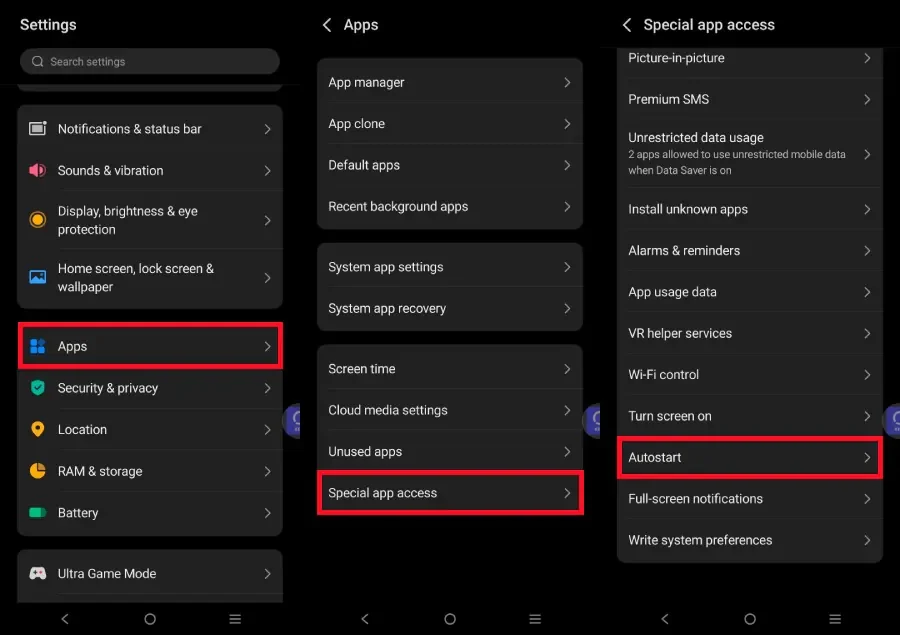
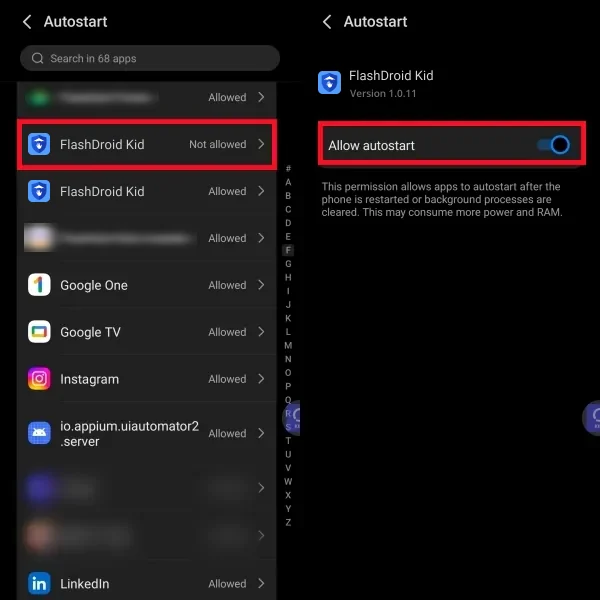
Step 1 — Allow autostart
Settings → Apps → Special app access → Autostart → tap FlashDroid Kid → switch Allow autostart on.
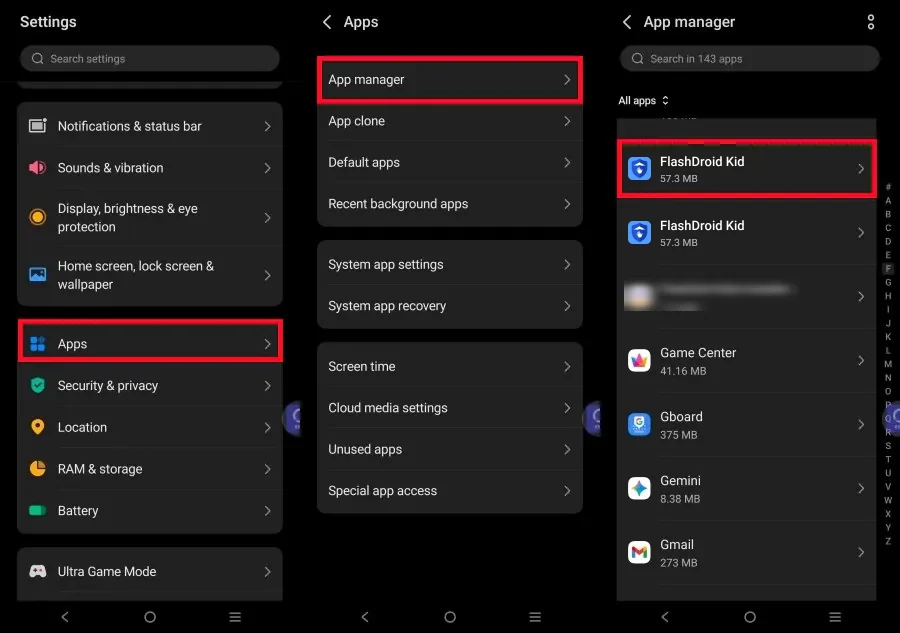
Step 2 — Allow background power usage
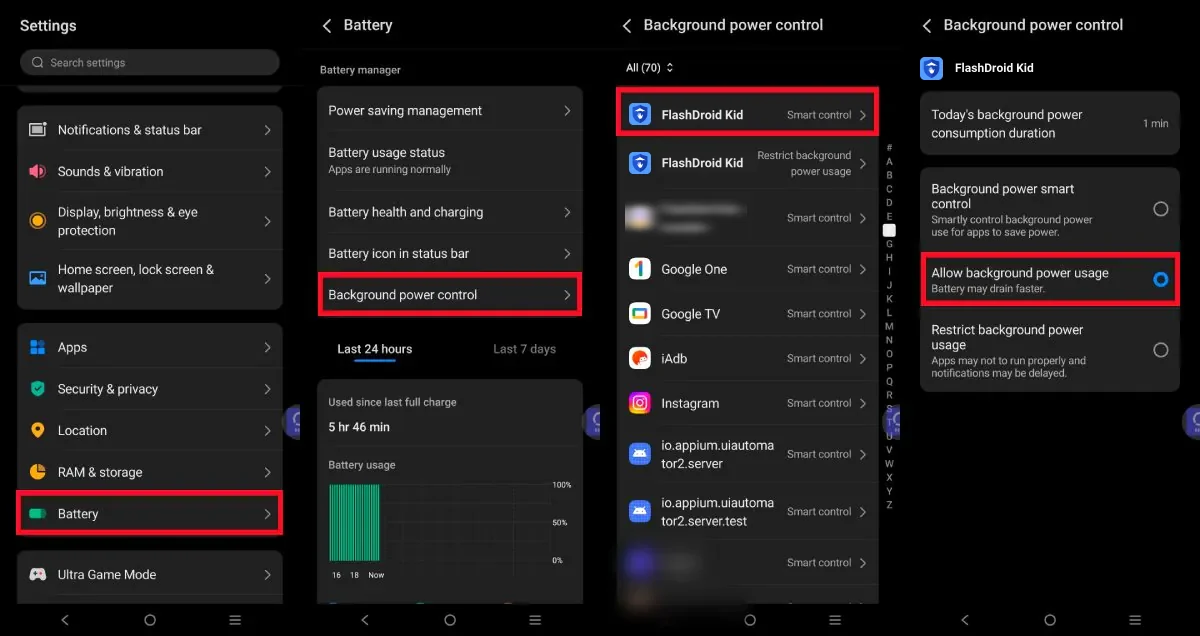
Go to Settings → Apps → App manager → FlashDroid Kid, open Battery usage → Background power control, and choose Allow background power usage. (On the Battery usage screen you will also see a Stop running in background link — don't tap it.)
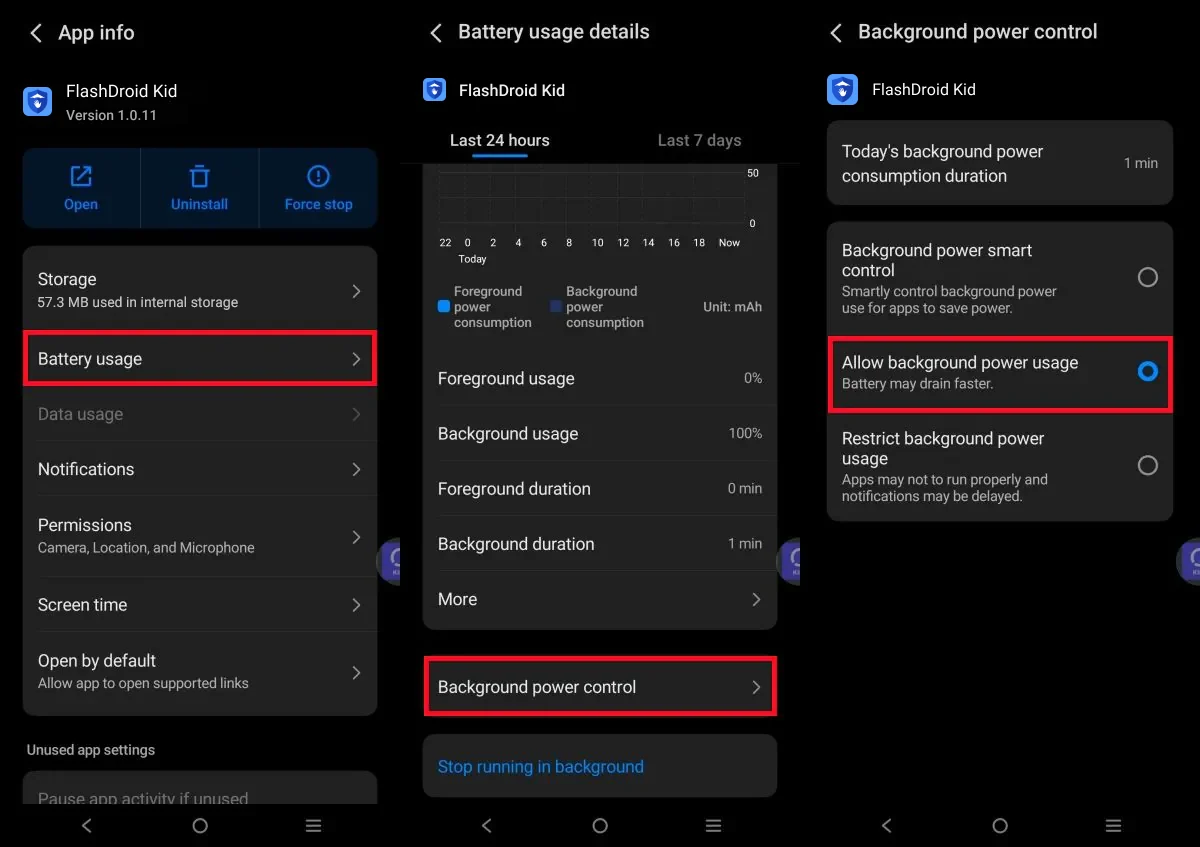
The same screen is also reachable via Settings → Battery → Background power control → FlashDroid Kid:
Step 3 — Keep the battery savers off
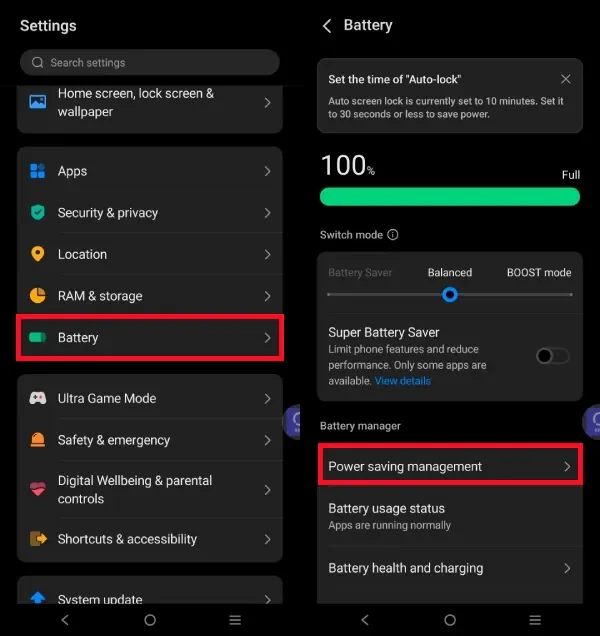
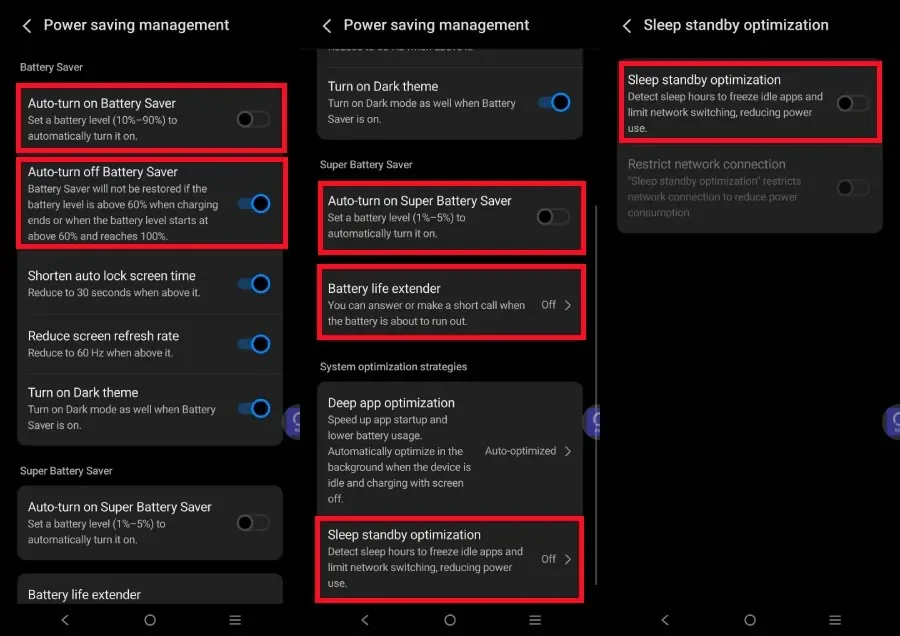
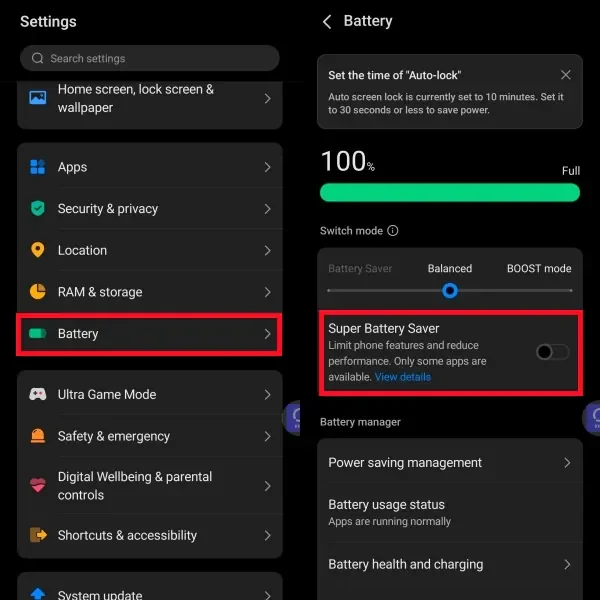
In Settings → Battery: keep Super Battery Saver off and the mode switch on Balanced. Then open Power saving management and make sure Auto-turn on Battery Saver, Auto-turn on Super Battery Saver and Sleep standby optimization are all off — the last one freezes idle apps and cuts the network during sleep hours, which is precisely when FlashDroid Kid should be on watch.
Step 4 — Unrestricted data
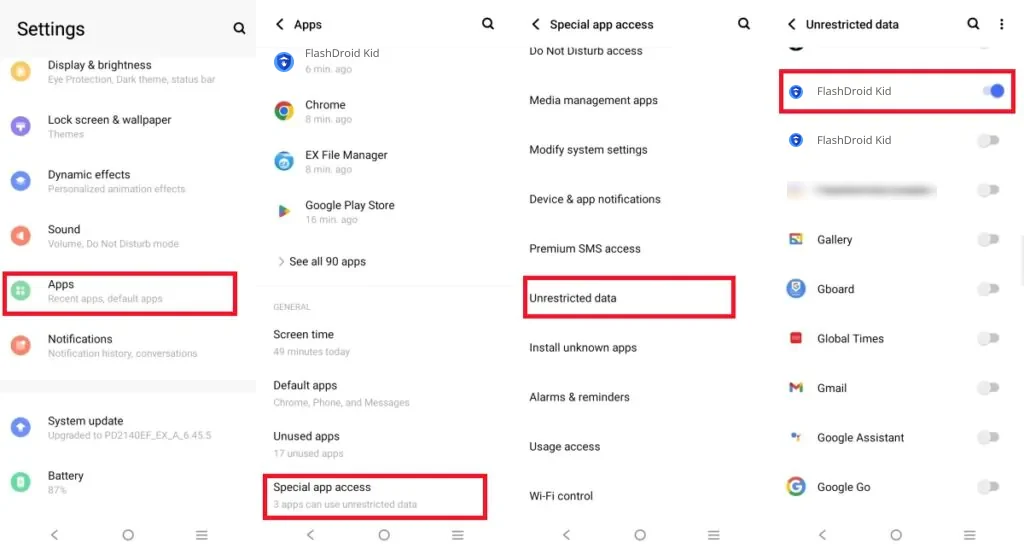
Settings → Apps → Special app access → Unrestricted data → switch FlashDroid Kid on.
Step 5 — Allow Wi-Fi control
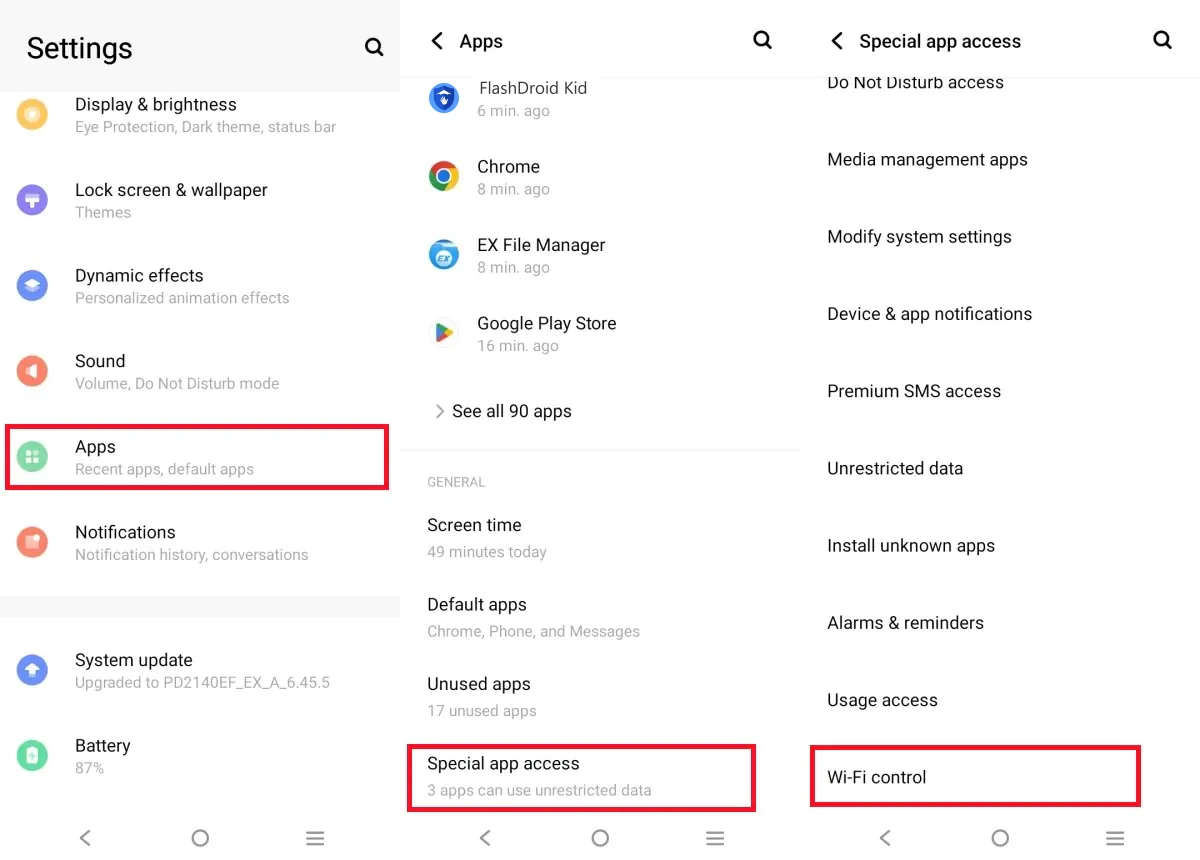
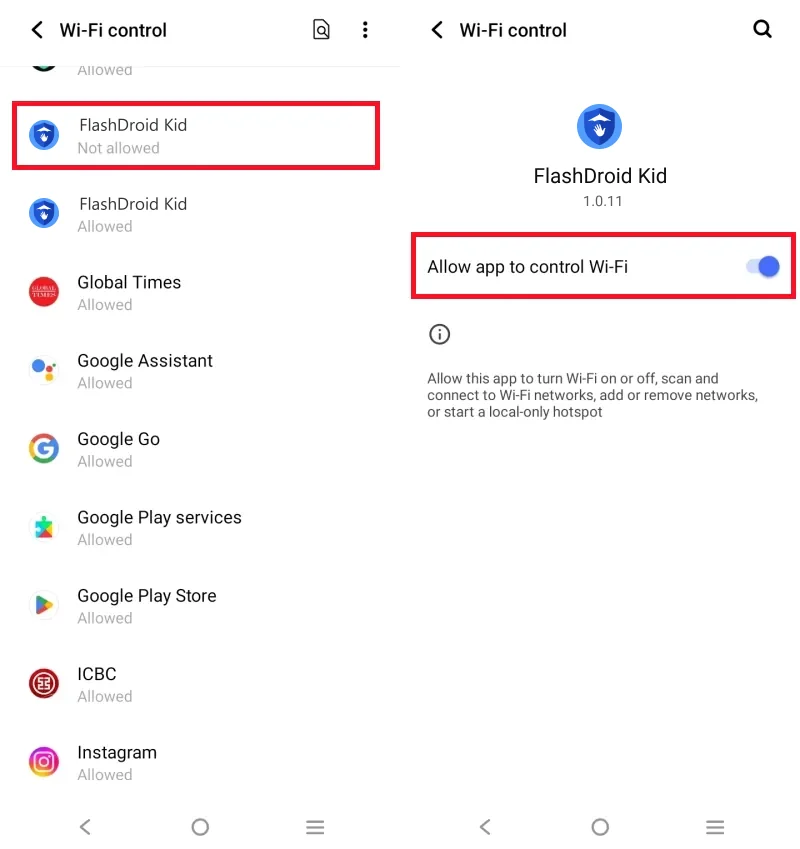
In Special app access, open Wi-Fi control, tap FlashDroid Kid, and turn on Allow app to control Wi-Fi.
Step 6 — Background data for FlashDroid Kid
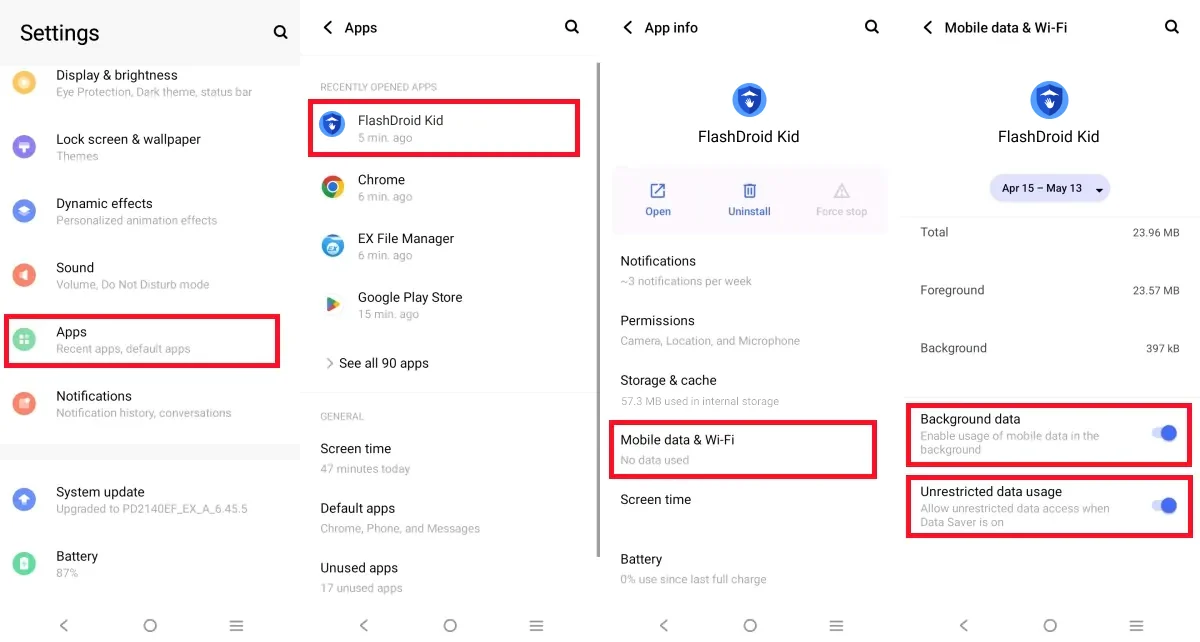
Settings → Apps → FlashDroid Kid → Mobile data & Wi-Fi: switch on Background data and Unrestricted data usage.
Android 15
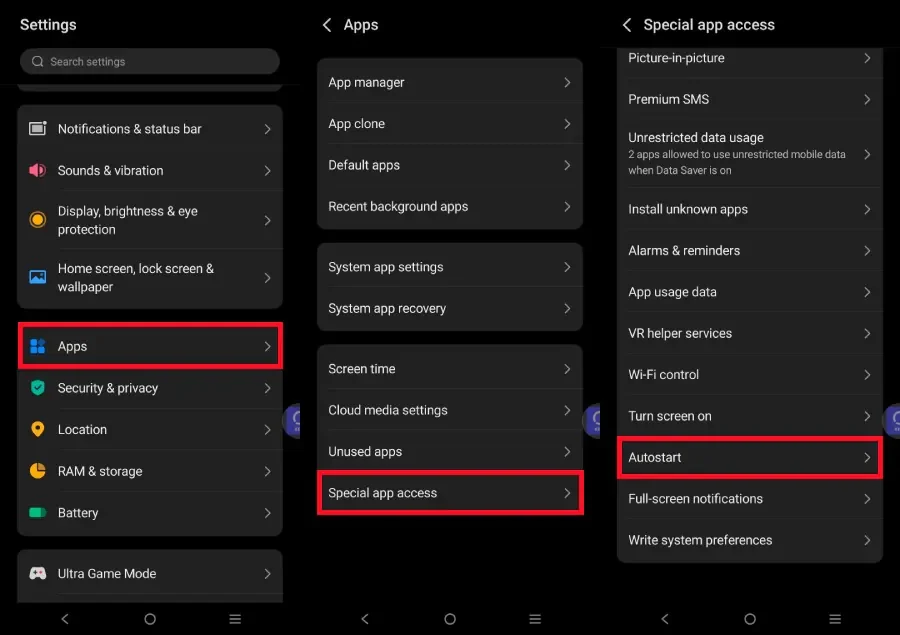
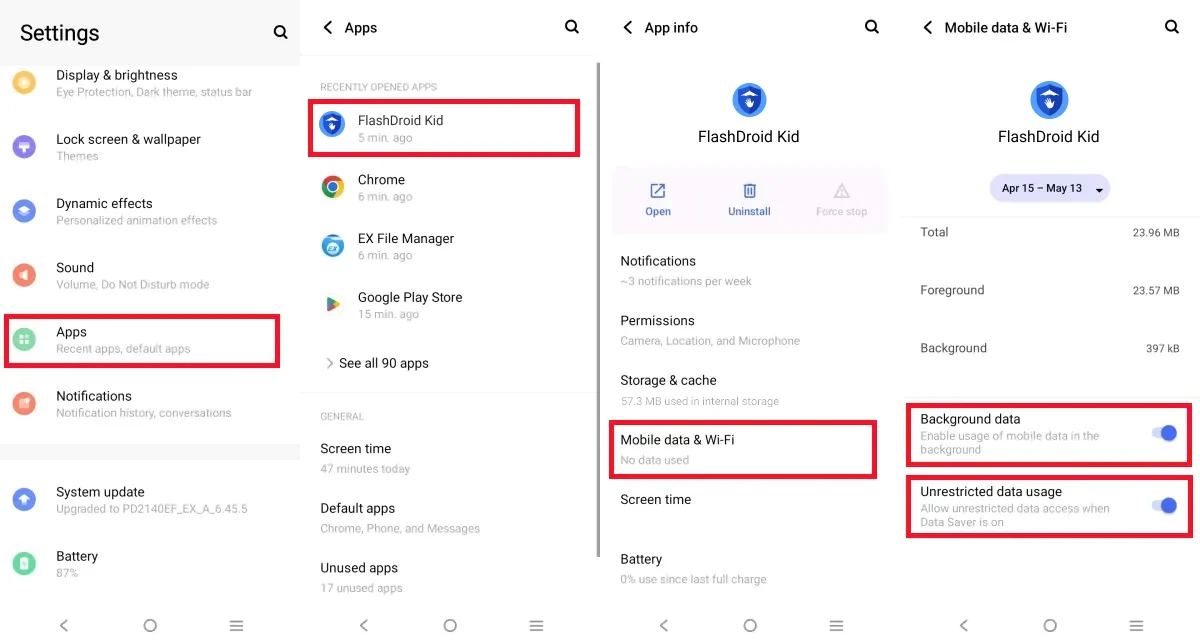
Step 1 — Allow autostart
Settings → Apps → Special app access → Autostart → tap FlashDroid Kid → switch Allow autostart on.
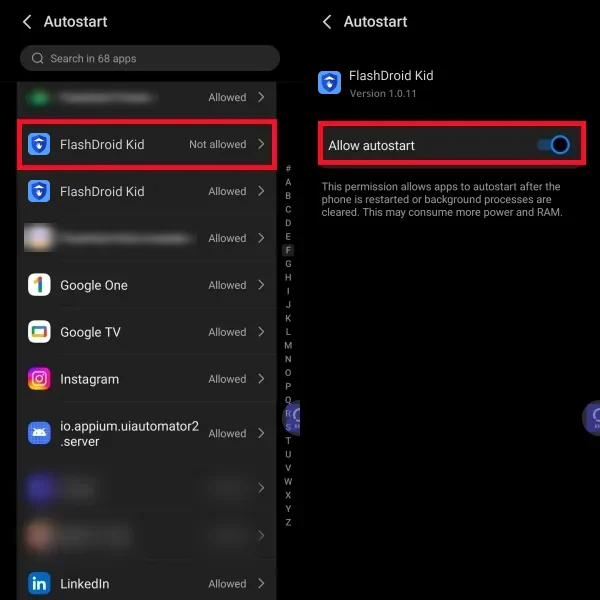
Step 2 — Allow background usage, set Unrestricted
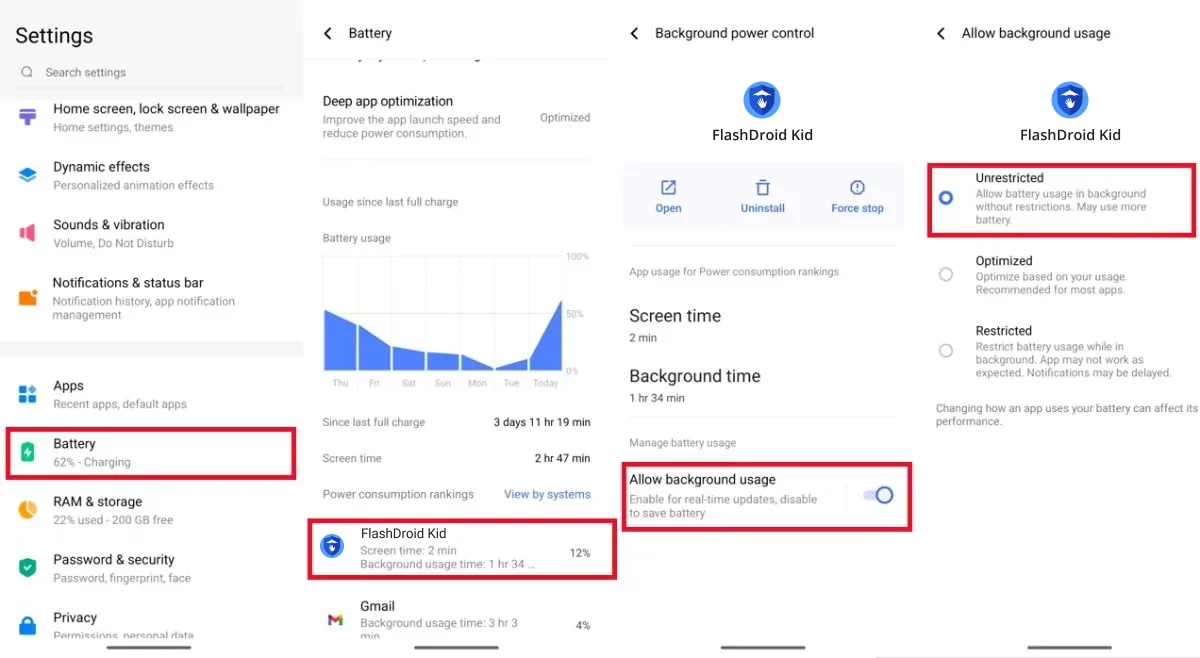
Go to Settings → Apps → FlashDroid Kid → App battery usage. Turn Allow background usage on, then choose Unrestricted.
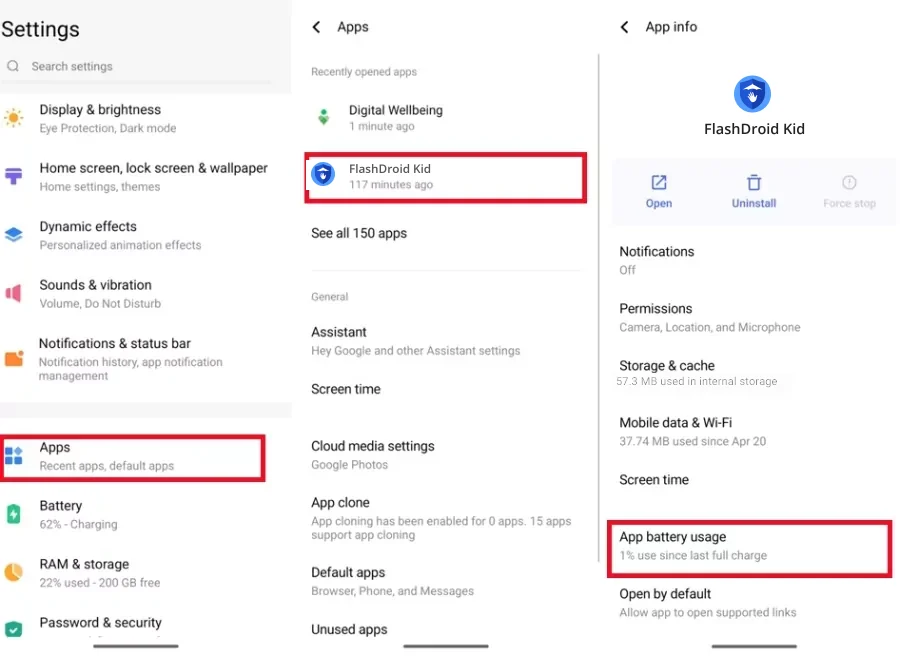
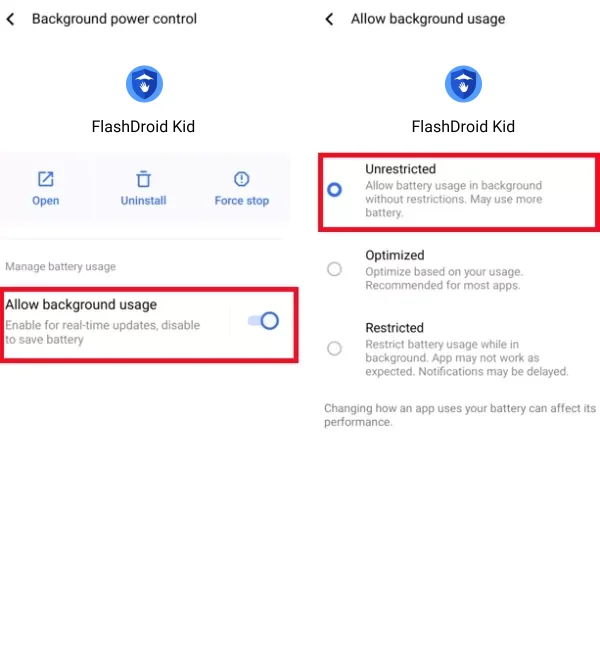
The same screen is also reachable from Settings → Battery → Power consumption rankings → FlashDroid Kid:
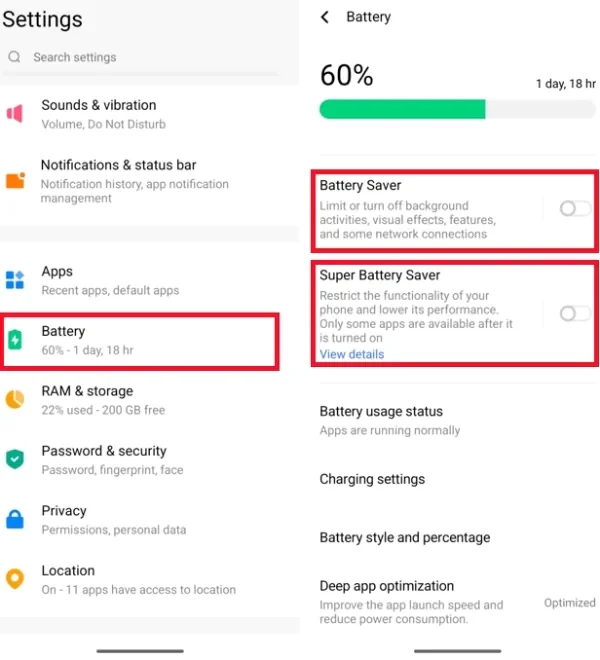
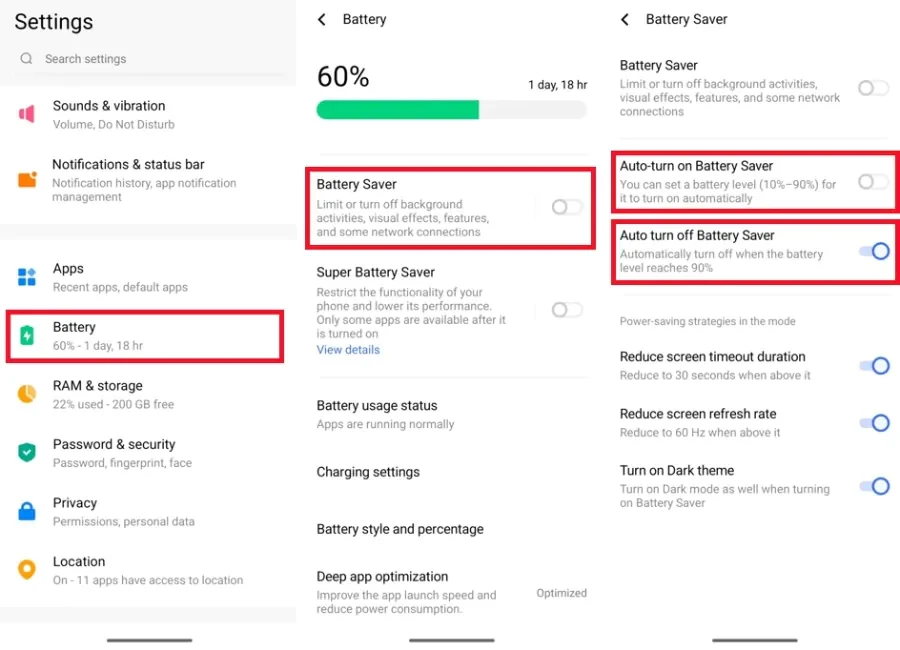
Step 3 — Keep Battery Saver off, and stop it auto-starting
In Settings → Battery, make sure both Battery Saver and Super Battery Saver are off. Then open Battery Saver and check Auto-turn on Battery Saver is off too — otherwise it quietly activates at a set battery level and takes FlashDroid Kid down with it.
Step 4 — Unrestricted data
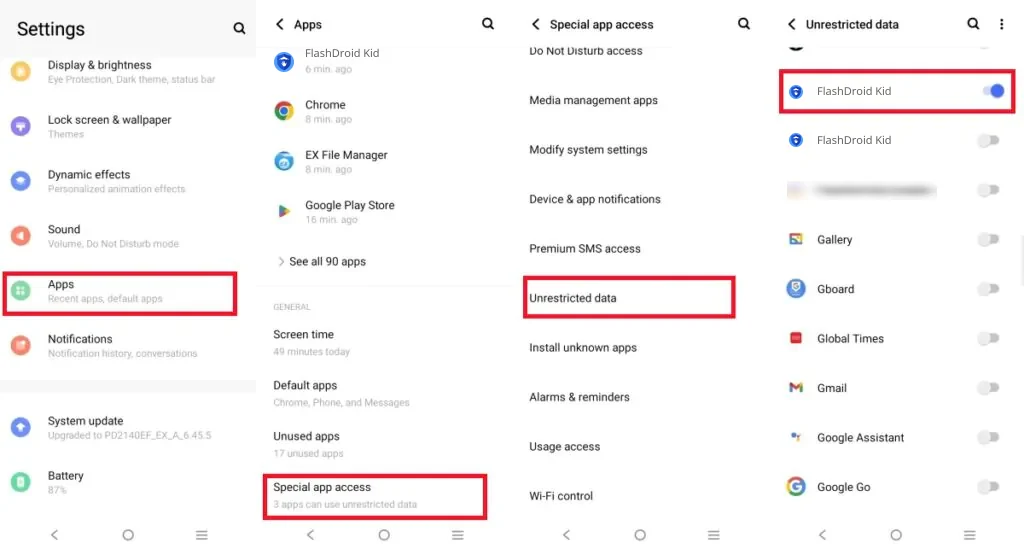
Settings → Apps → Special app access → Unrestricted data → switch FlashDroid Kid on.
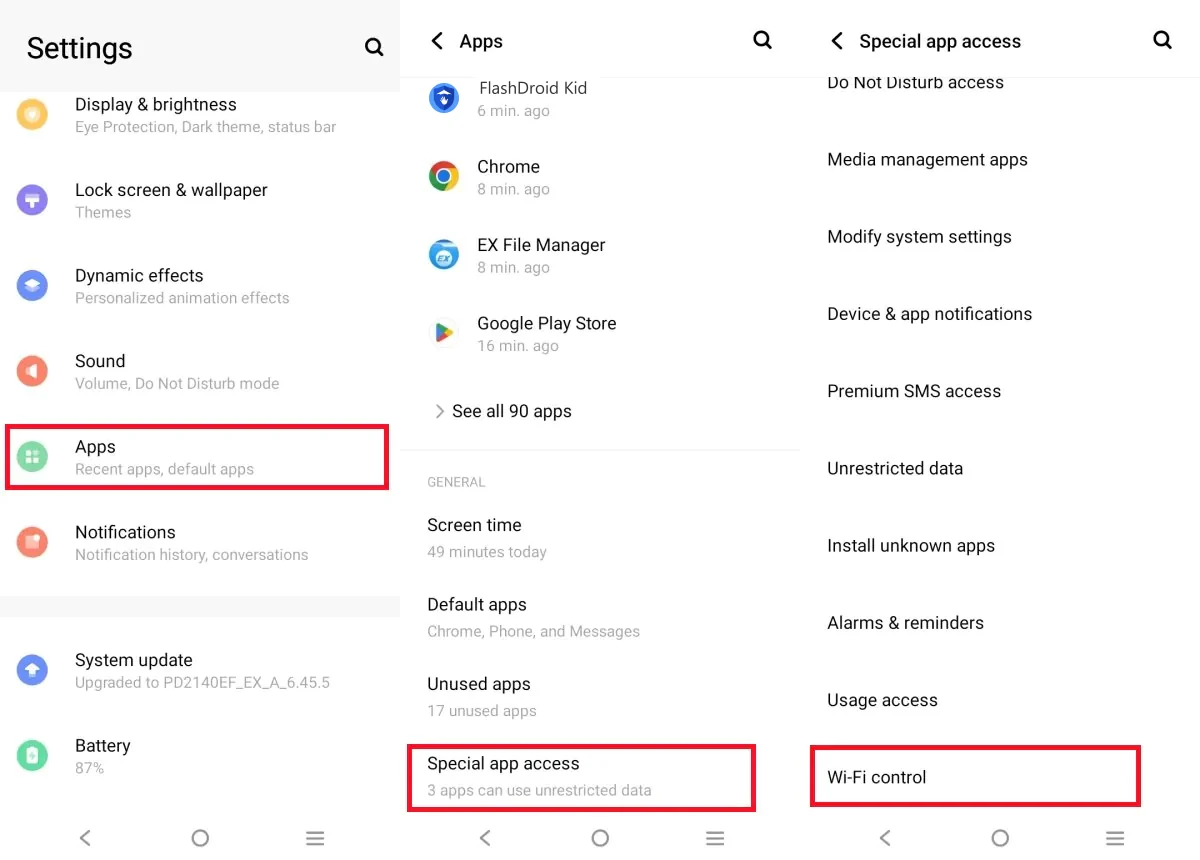
Step 5 — Allow Wi-Fi control
In Special app access, open Wi-Fi control, tap FlashDroid Kid, and turn on Allow app to control Wi-Fi.
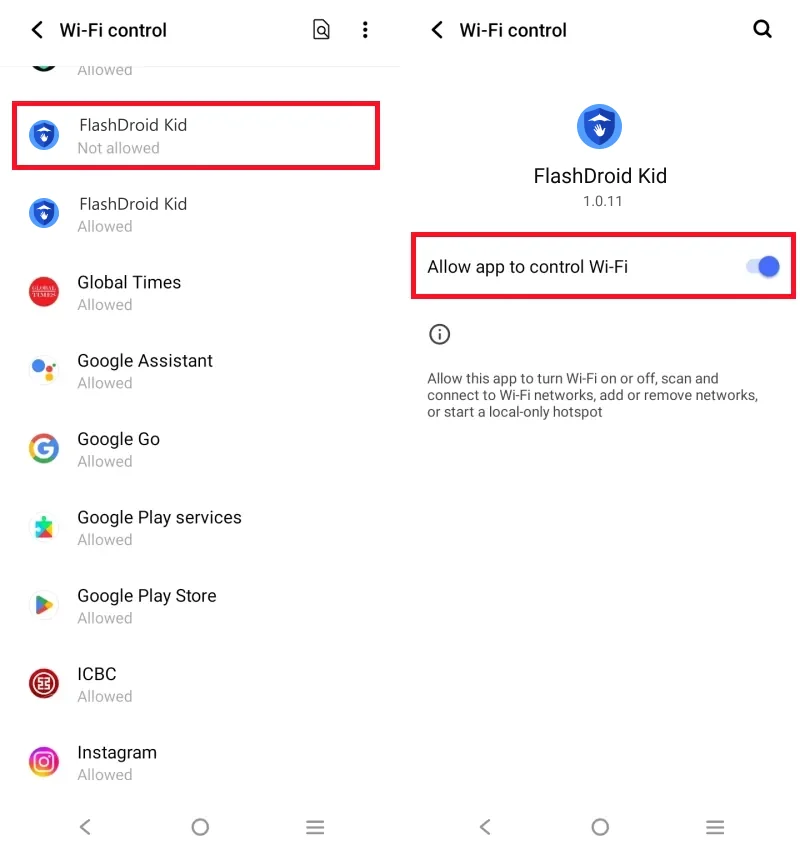
Step 6 — Background data for FlashDroid Kid
Settings → Apps → FlashDroid Kid → Mobile data & Wi-Fi: switch on Background data and Unrestricted data usage.
Android 12–14
Step 1 — Open Autostart
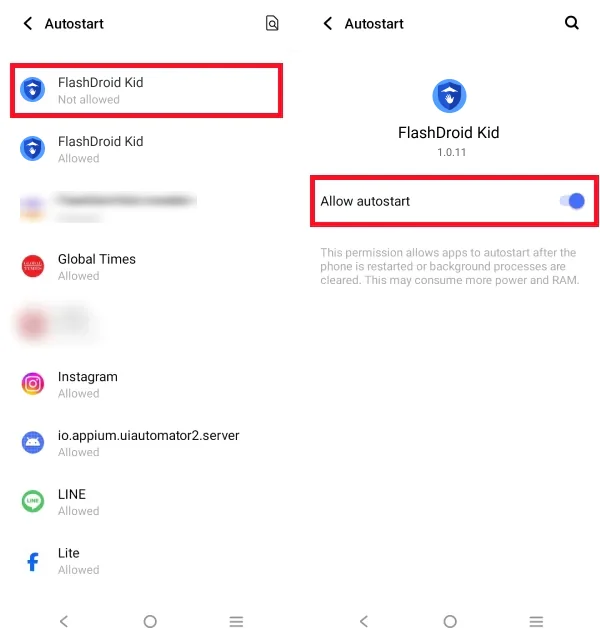
Go to Settings → Apps → Special app access → Autostart.
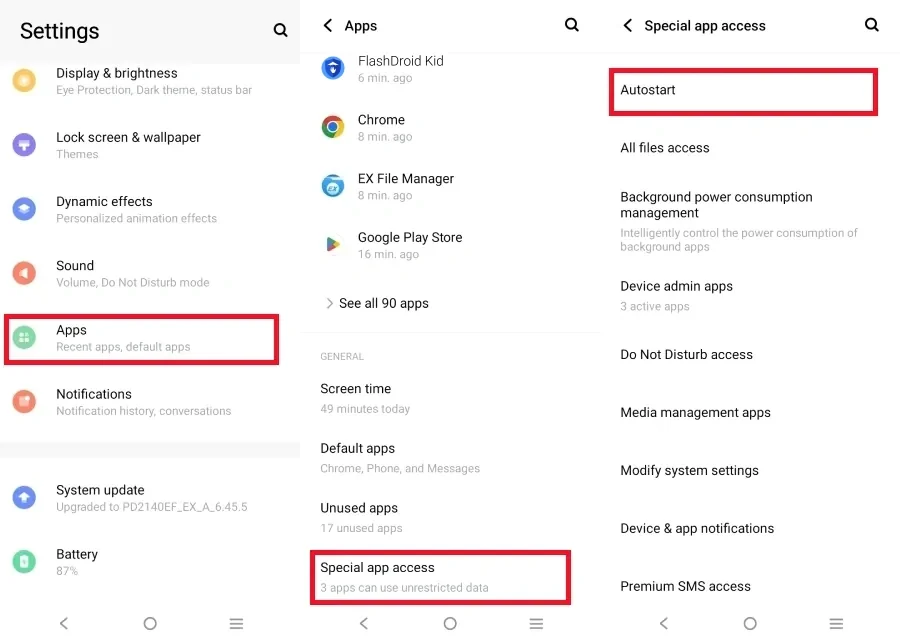
Step 2 — Allow autostart for FlashDroid Kid
Tap FlashDroid Kid in the list and switch Allow autostart on. This is what lets FlashDroid Kid come back after a restart or a background clean-up.
Step 3 — Set battery usage to Unrestricted
Go to Settings → Battery → Battery Usage, tap FlashDroid Kid, and choose Unrestricted under Manage battery usage.
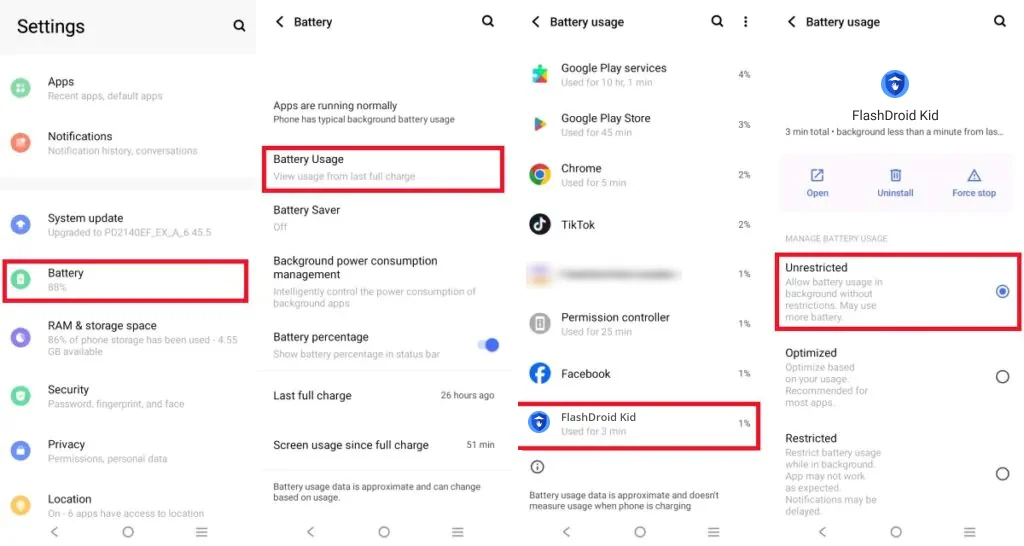
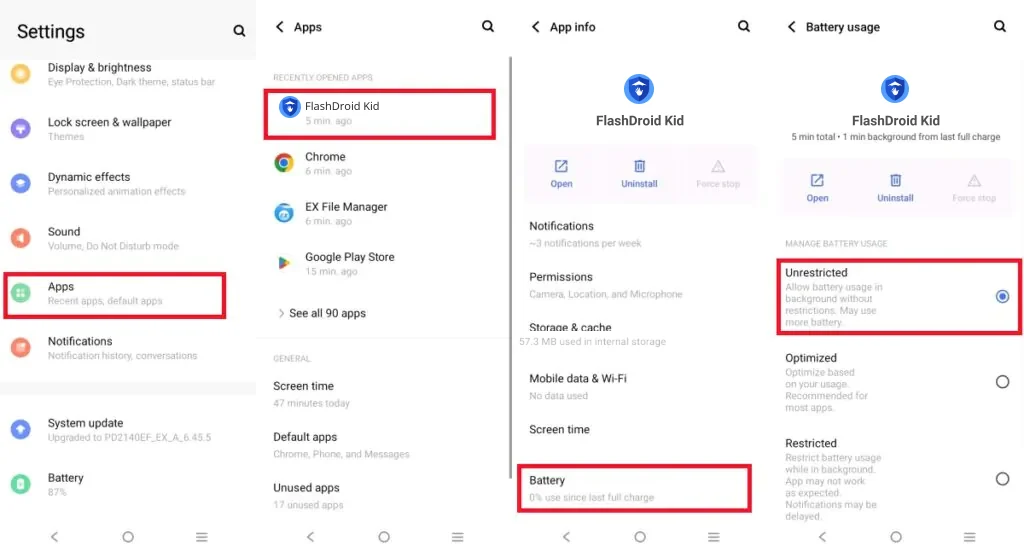
The same setting is also reachable from the app side — Settings → Apps → FlashDroid Kid → Battery — if you find that quicker:
Step 4 — Don't restrict background power
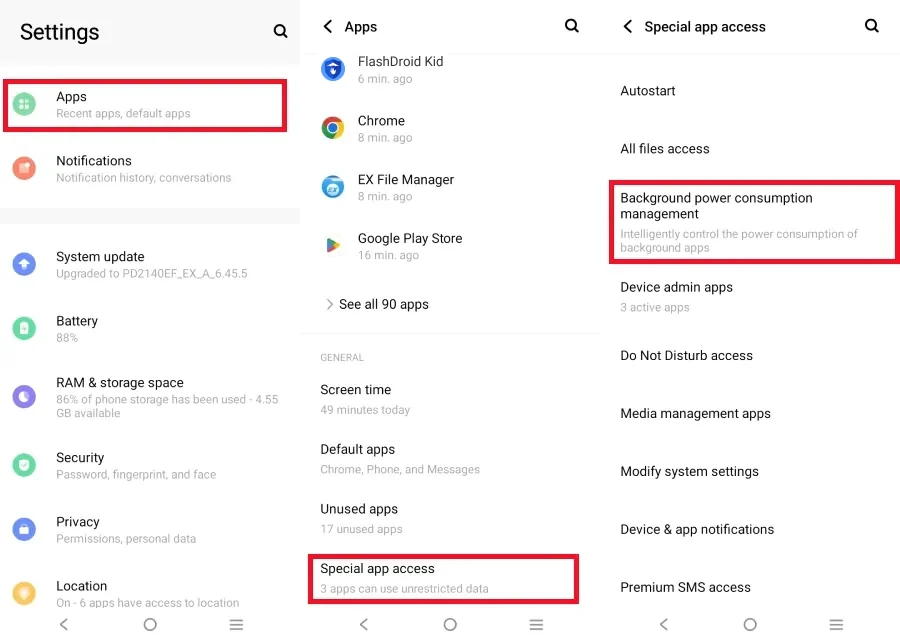
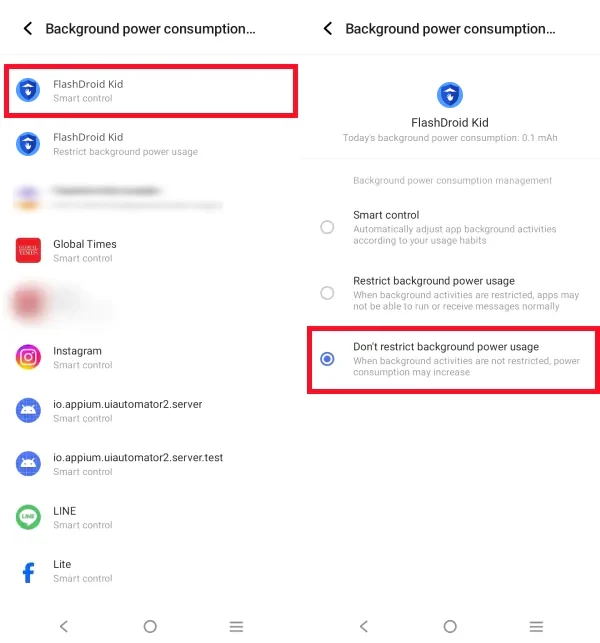
Go to Settings → Battery → Background power consumption management, tap FlashDroid Kid (it will say Smart control), and choose Don't restrict background power usage. Smart control is vivo's automatic killer — the very thing this guide is switching off.
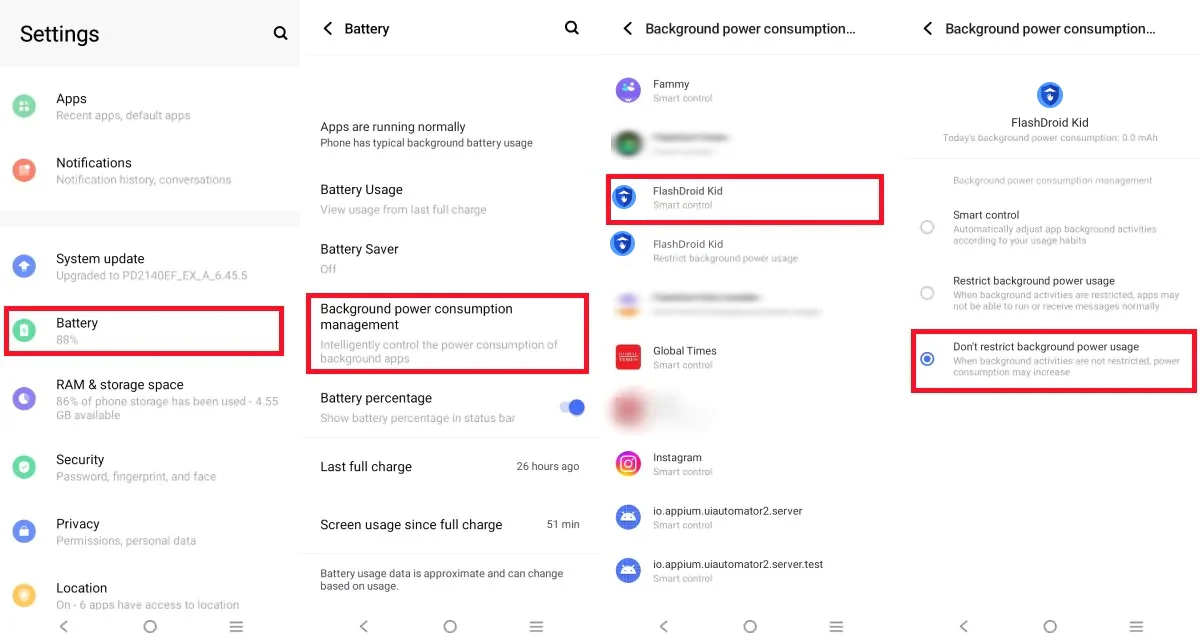
The same screen is also reachable via Settings → Apps → Special app access → Background power consumption management:
Step 5 — Keep Battery Saver off
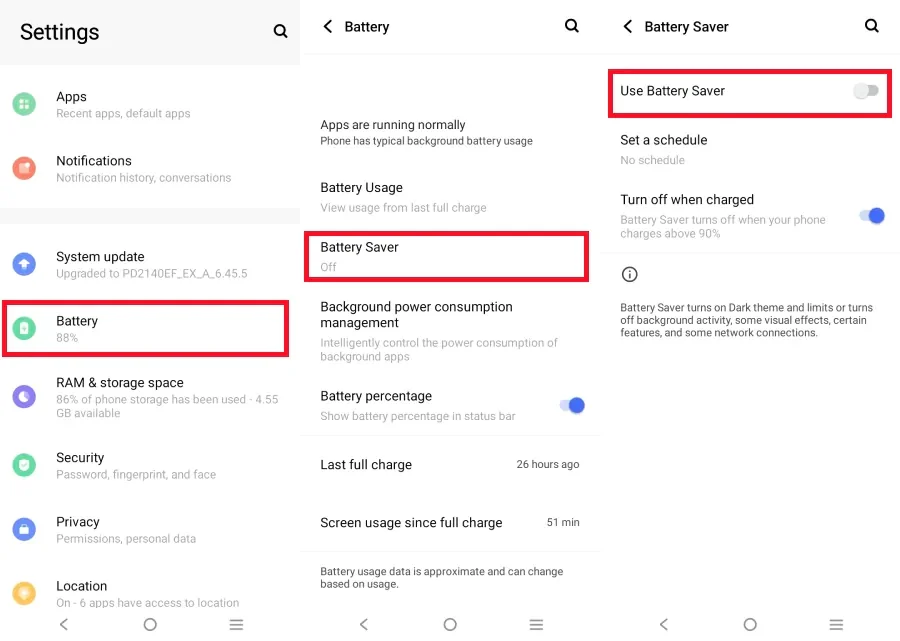
Settings → Battery → Battery Saver: make sure Use Battery Saver is off. While active it limits or turns off background activity across the phone.
Step 6 — Unrestricted data
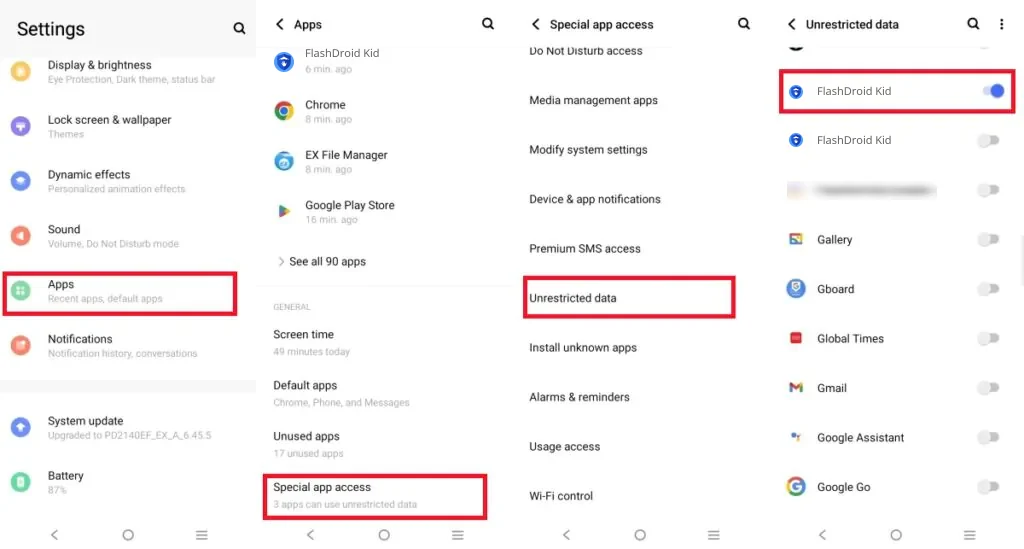
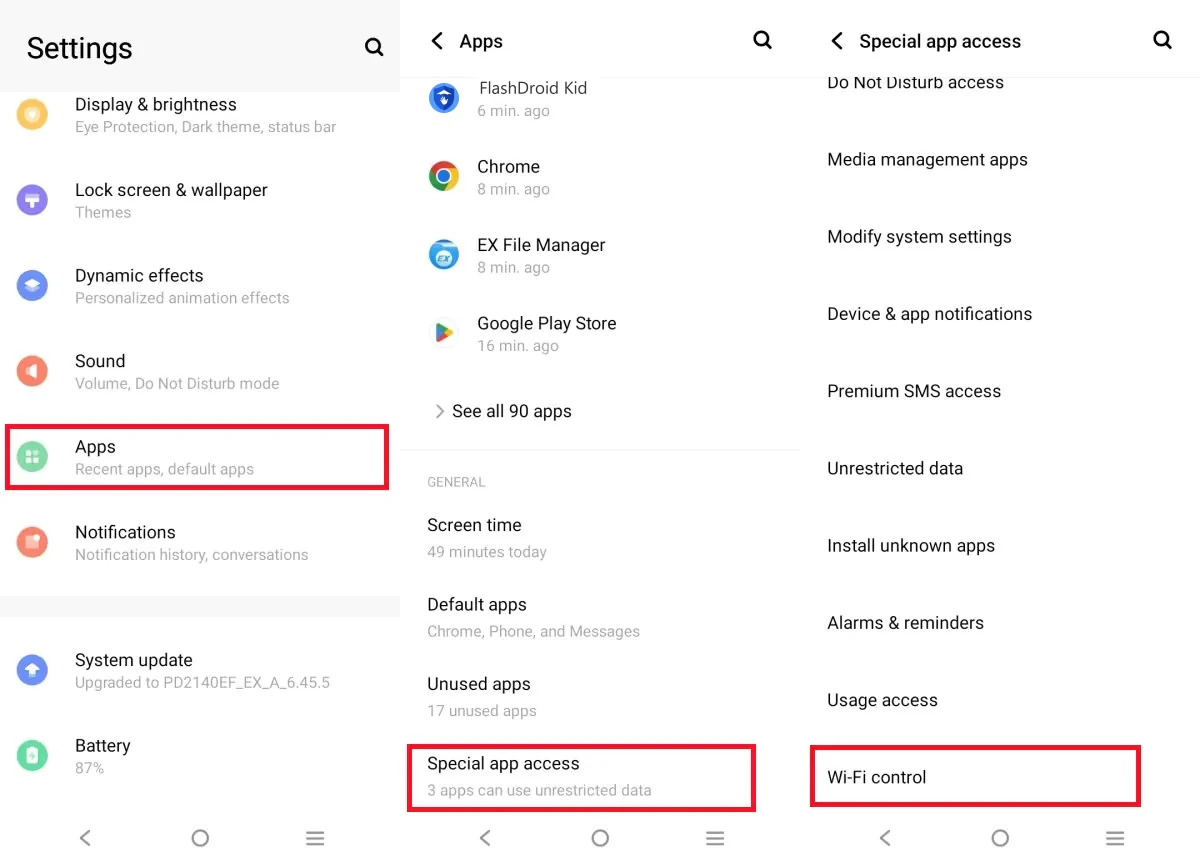
Settings → Apps → Special app access → Unrestricted data: switch FlashDroid Kid on, so Data Saver can never cut its reporting.
Step 7 — Allow Wi-Fi control
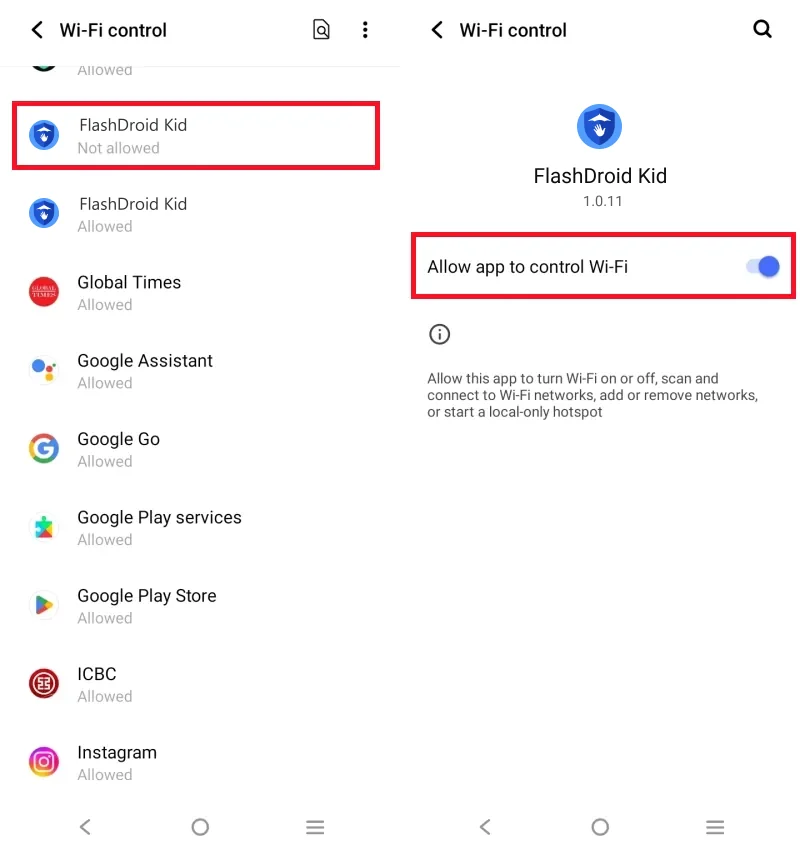
In Special app access, open Wi-Fi control, tap FlashDroid Kid, and turn on Allow app to control Wi-Fi. FlashDroid Kid uses this to keep the device's connection to the FlashDroid app healthy.
Step 8 — Background data for FlashDroid Kid
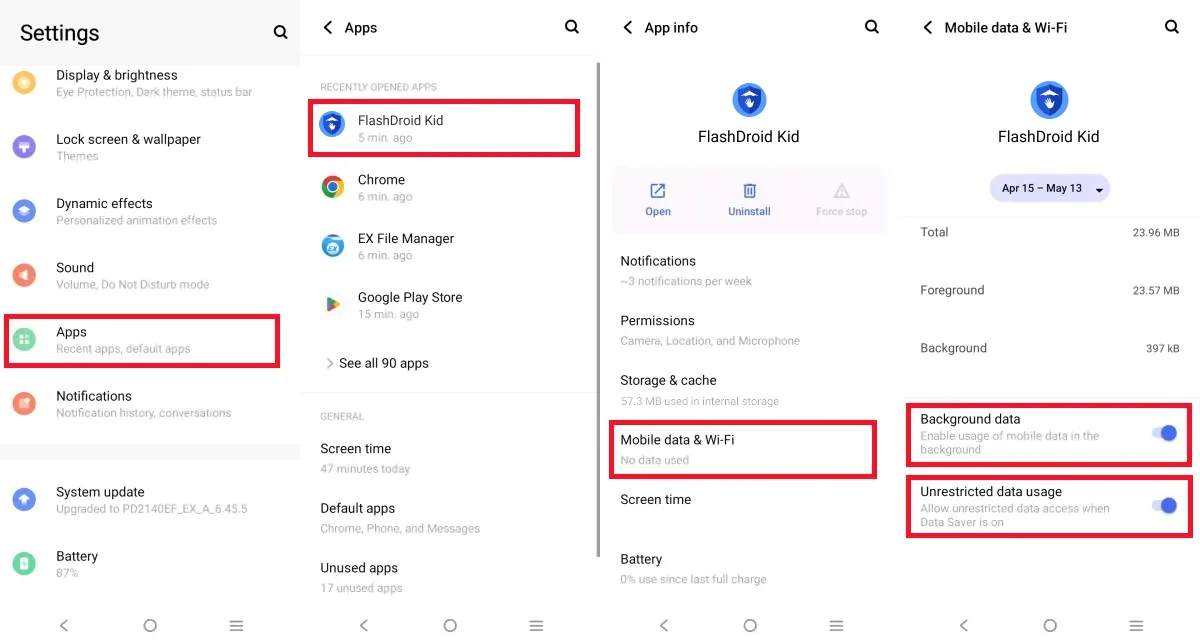
Settings → Apps → FlashDroid Kid → Mobile data & Wi-Fi: switch on both Background data and Unrestricted data usage.
Step 9 — Turn off Sensitive permission alert
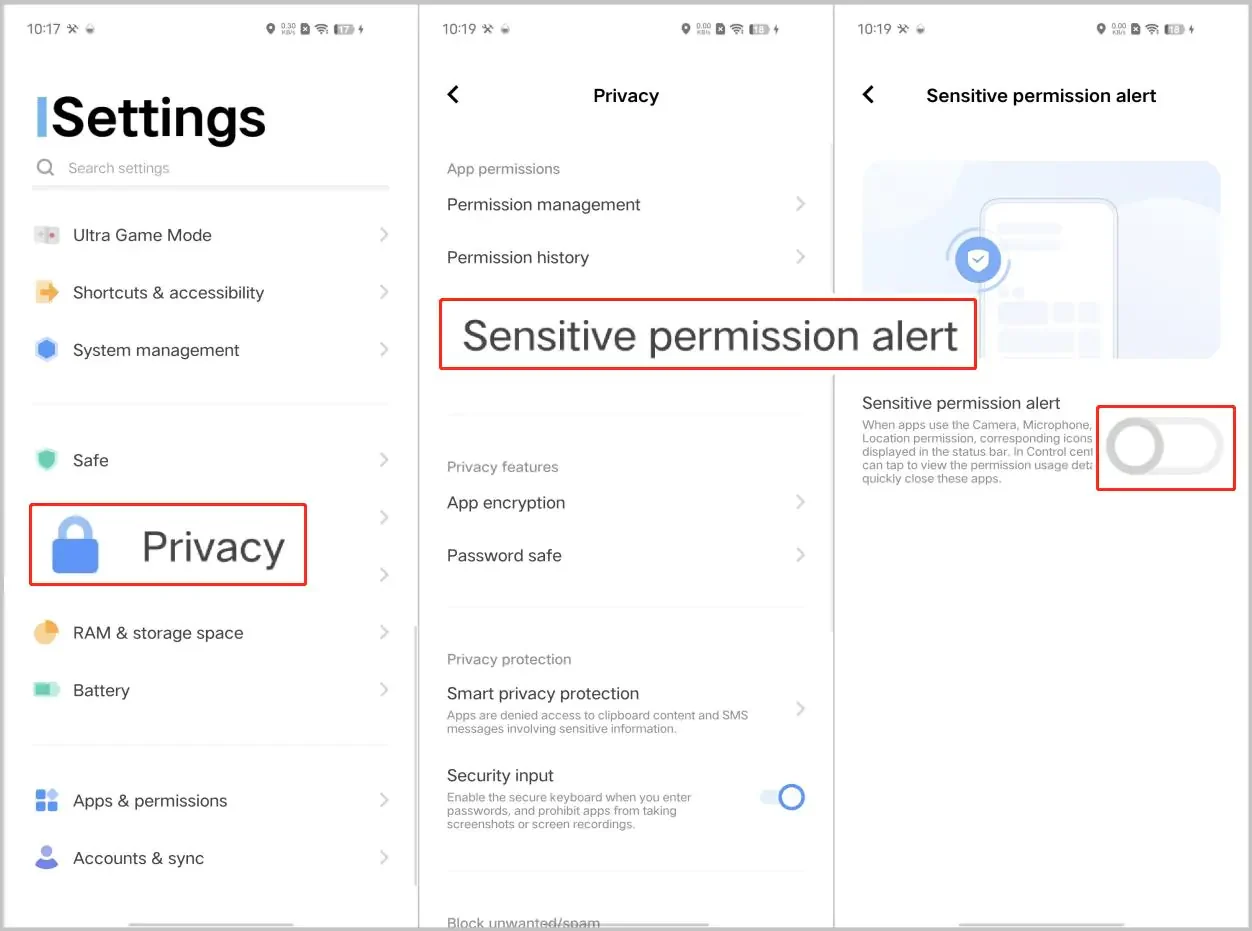
Funtouch shows status-bar icons whenever an app uses the camera, microphone or location — and lets anyone tap through and close that app. On a child's device this hands them a one-tap way to stop FlashDroid Kid. Go to Settings → Privacy → Sensitive permission alert and switch it off.
Check it worked
Your child's phone should show online in the FlashDroid app and stay online overnight, with no gaps in reports over 48 hours.
Funtouch and OriginOS updates can reset autostart and background power settings. After a system update on the child's phone, re-check Autostart and Background power control first — they revert most often.
Something still off? Start from the overview — How to keep FlashDroid Kid running in the background on Android.
Related guides
See how FlashDroid works
Set the day’s limit together, keep distractions out of study hours, and switch to Exam Day in one tap. Works whether the phone is theirs or yours.
See how it works