How to Keep FlashDroid Kid Running in the Background on Xiaomi?
Xiaomi's MIUI is known for closing background apps quickly: it ships with Autostart denied for new apps, closes background apps after minutes, and can cut mobile data every time the screen locks. Every one of those defaults stops FlashDroid Kid from working properly, and every one of them can be turned off.
Use the section for the child device's Android version (Settings → About phone). These steps also apply to Redmi and POCO phones, which run the same software.
All of these settings live on the child's Xiaomi — the phone with the FlashDroid Kid app on it.
Android 13 (MIUI 14)
Step 1 — Battery mode Balanced, lock-screen actions to Never
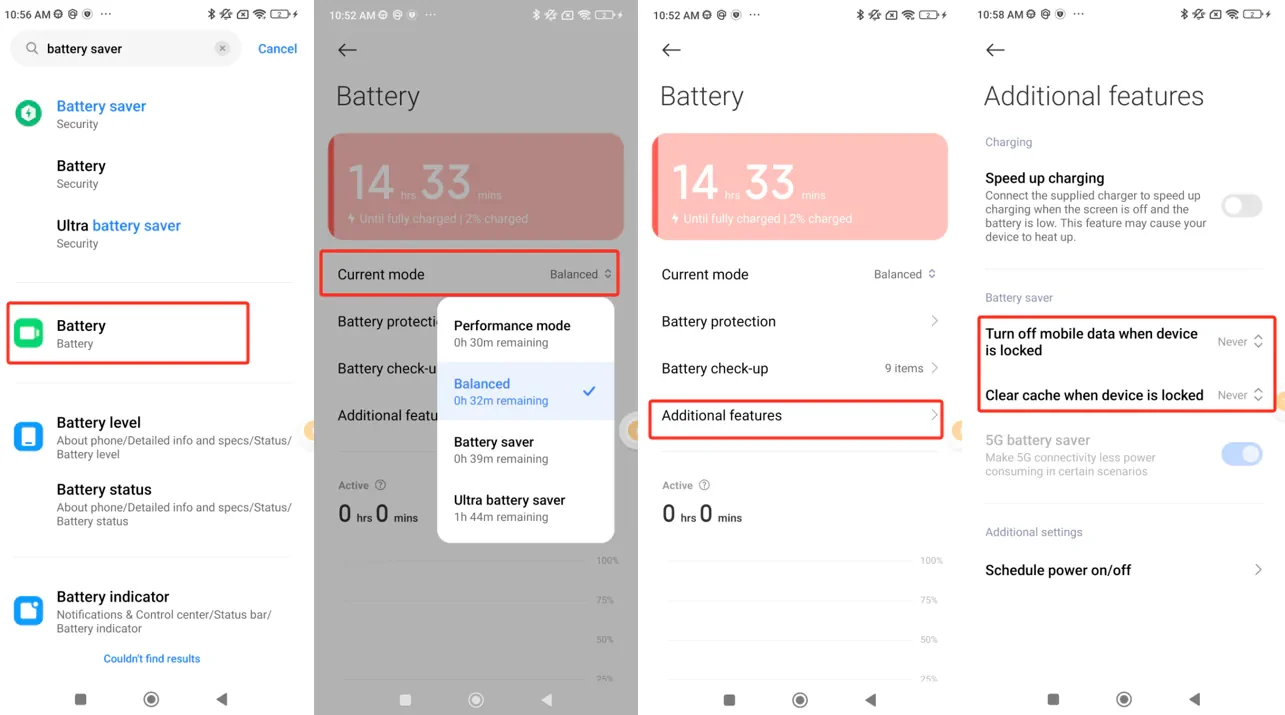
Search battery in Settings and open Battery. Set Current mode to Balanced, then open Additional features and set Turn off mobile data when device is locked and Clear cache when device is locked both to Never.
Step 2 — Open FlashDroid Kid in Manage apps
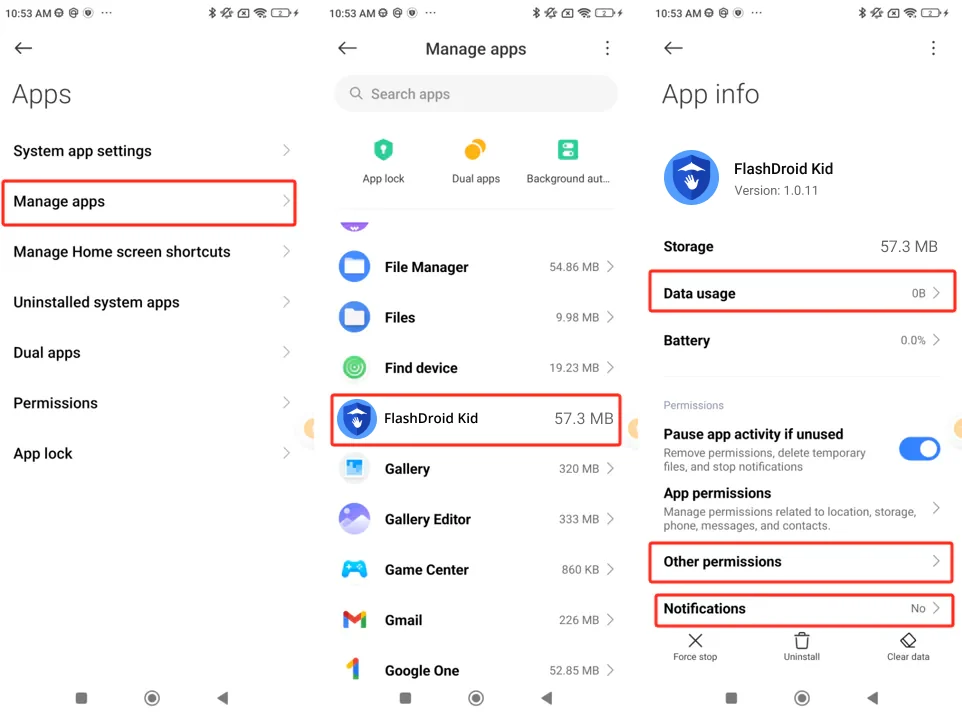
Settings → Apps → Manage apps → FlashDroid Kid. The three rows you will need are Data usage, Other permissions and Notifications. While you are here, switch Pause app activity if unused off — left on, MIUI strips FlashDroid Kid's permissions after a spell of the child not opening it (which is normal — children don't open FlashDroid Kid).
Step 3 — Allow mobile data, Wi-Fi and background data
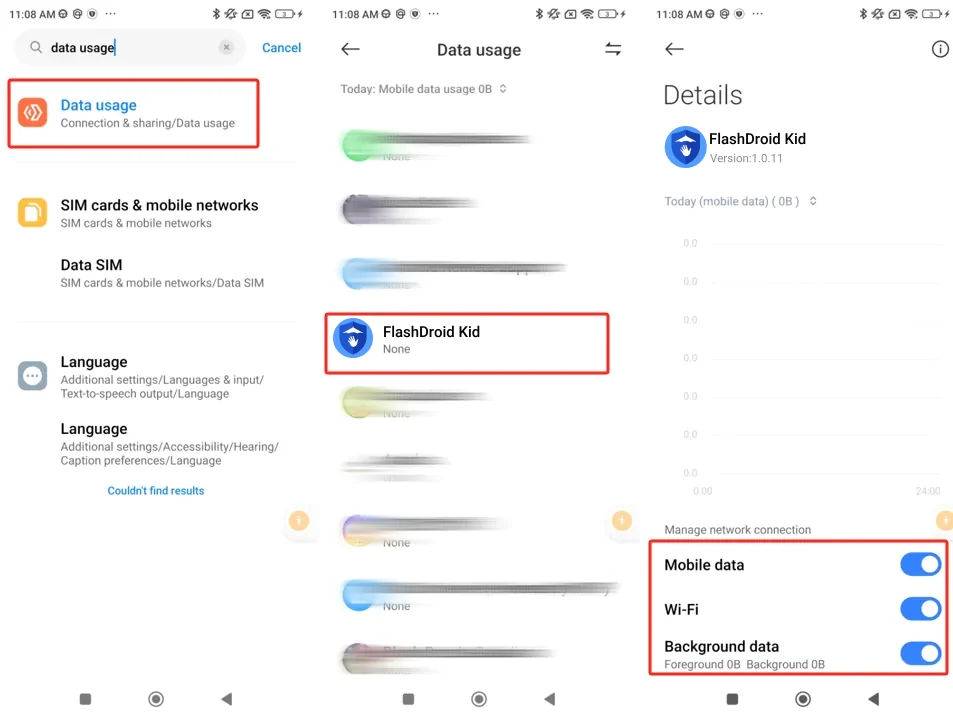
Open FlashDroid Kid's Data usage details and switch on all three: Mobile data, Wi-Fi and Background data.
Step 4 — Battery saver to No restrictions, notifications on
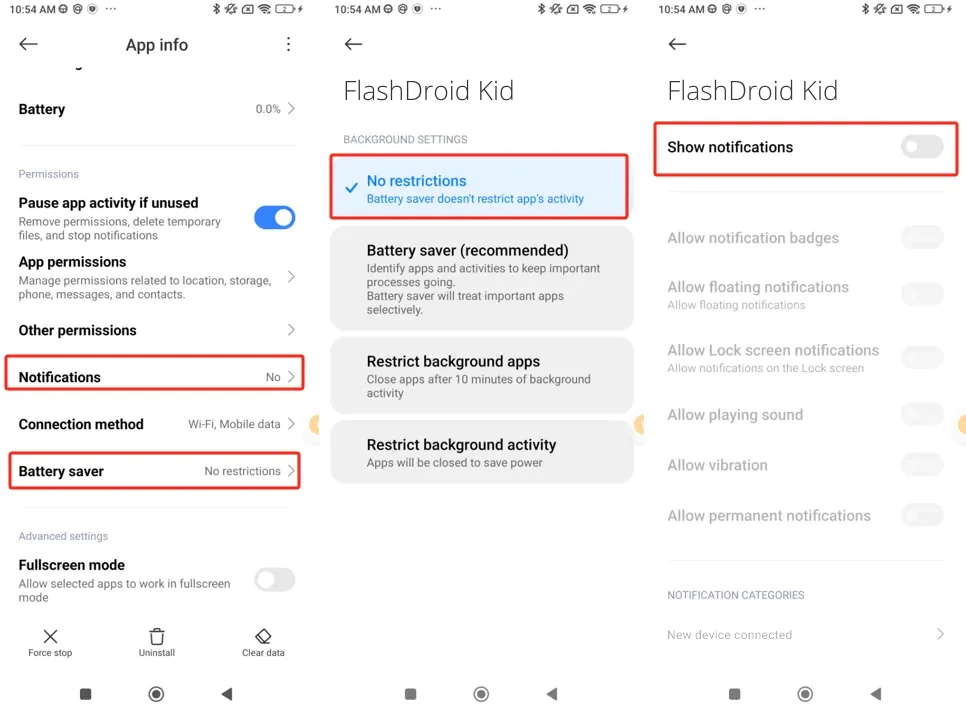
Back on App info: tap Battery saver and choose No restrictions. Then open Notifications and switch Show notifications on.
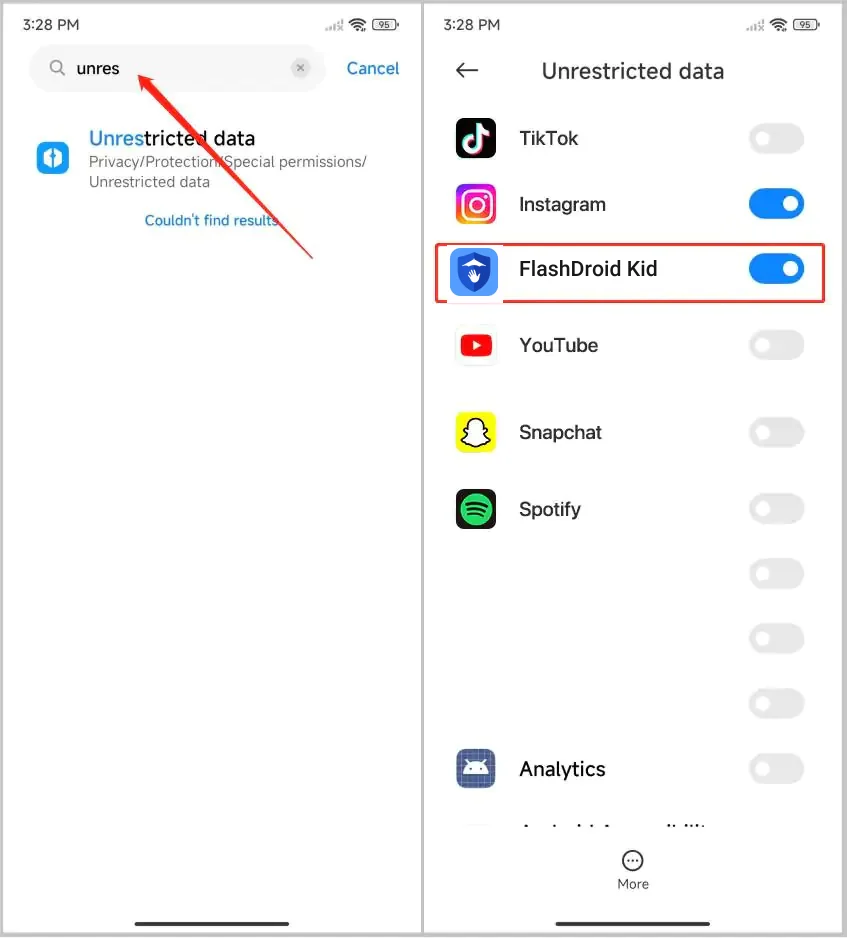
Step 5 — Unrestricted data
Search unrestricted data in Settings, open the list, and switch FlashDroid Kid on — this stops Data Saver from ever cutting its connection.
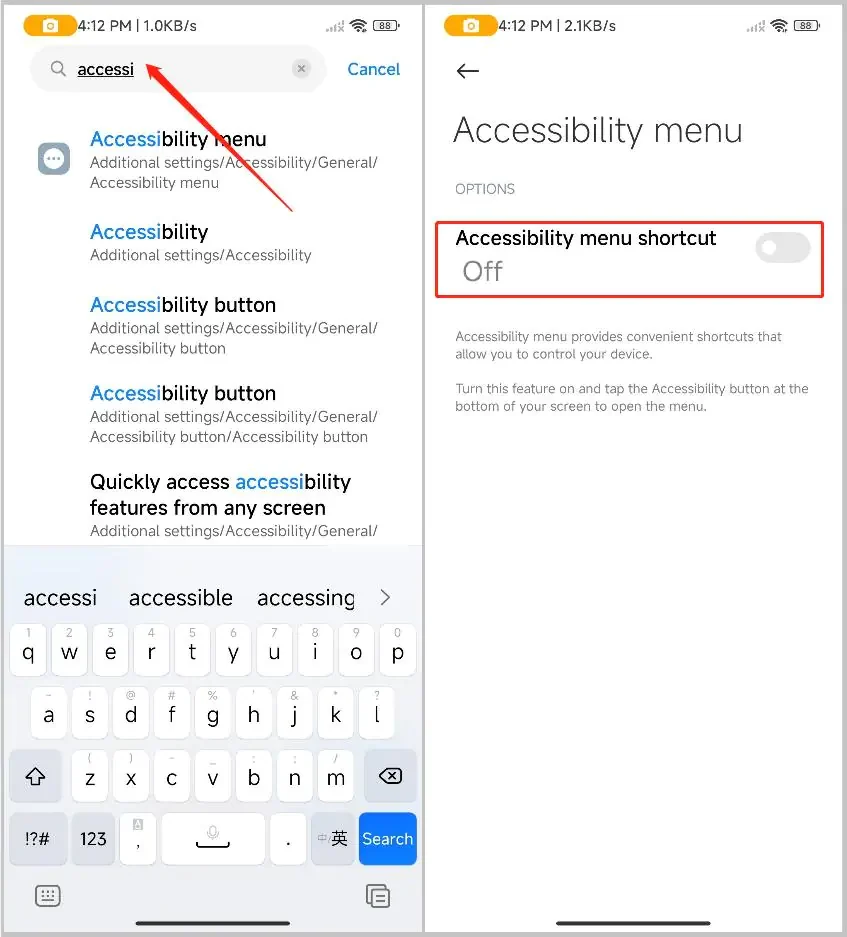
Step 6 — Know where Accessibility settings live
FlashDroid Kid uses an accessibility service to apply Screen Time limits and App Blocker rules, and if it is ever switched off you will need this screen to restore it. The fastest route on MIUI is Settings search: type accessibility and open the Accessibility menu result. You do not need to change anything here today — just know the route.
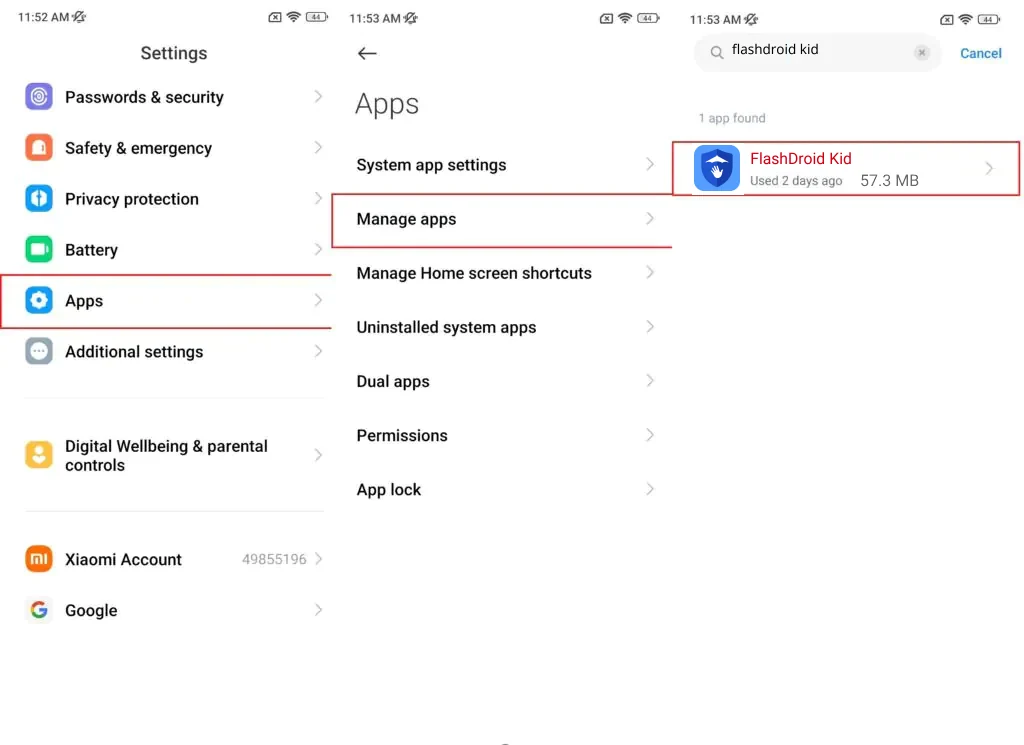
Step 7 — Find FlashDroid Kid for the permission steps
The last two settings are buried, so use search again: Settings → Apps → Manage apps, search flashdroid kid, and open it.
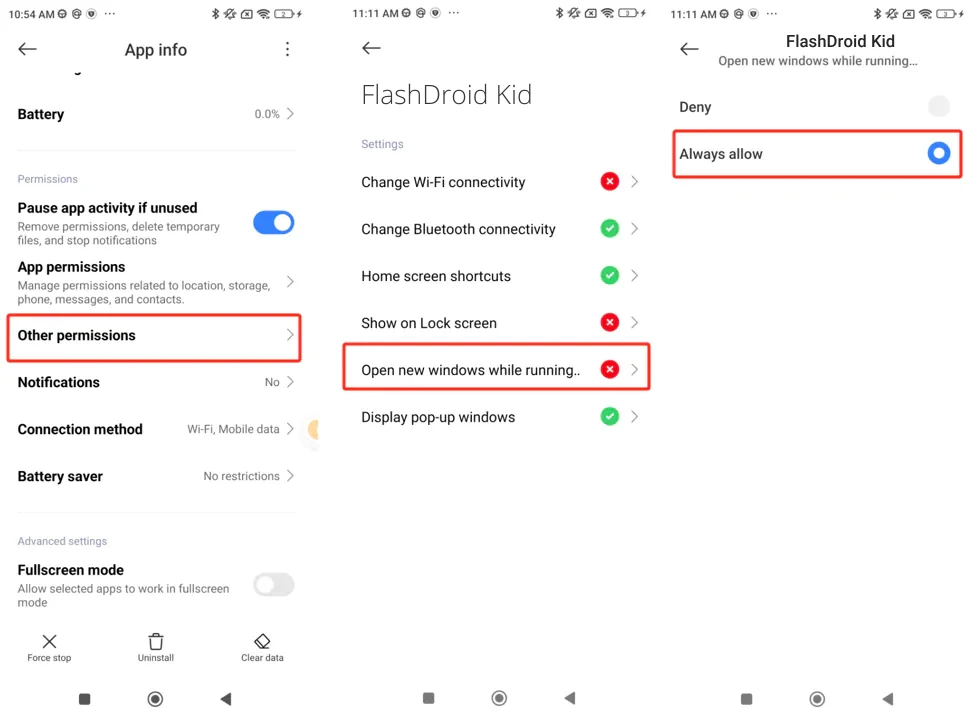
Step 8 — Allow background windows (critical)
Open Other permissions and set Open new windows while running in the background to Always allow. (On some MIUI versions this permission is called Display pop-up windows while running in the background.) Without it, FlashDroid Kid's limit screens cannot appear over other apps — the single most common cause of "limits not working" on Xiaomi.
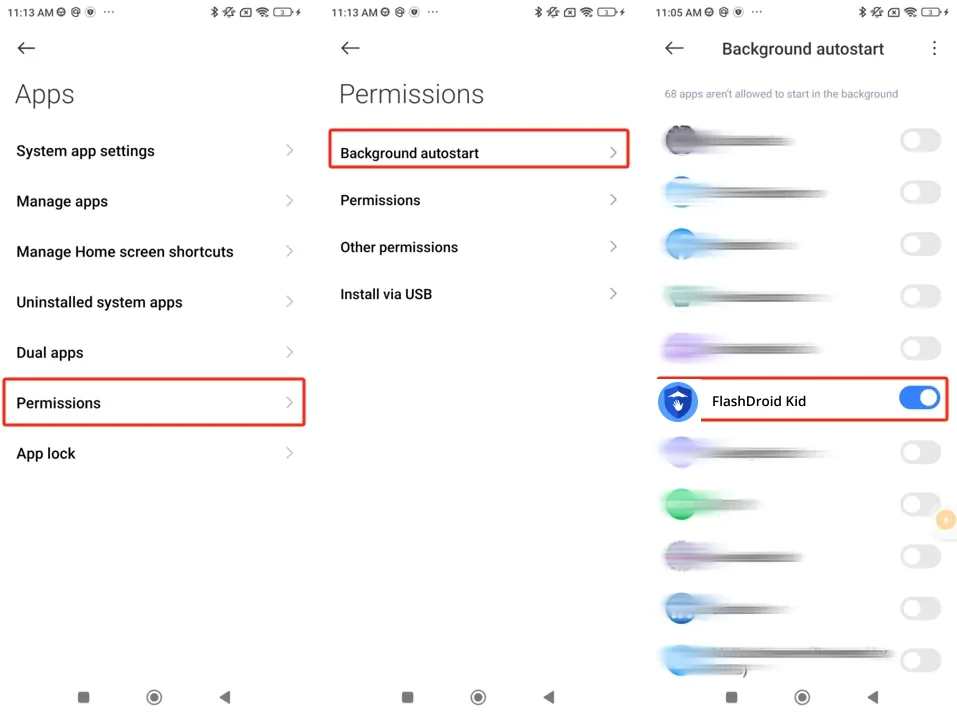
Step 9 — Allow Background autostart
Go to Settings → Apps → Permissions → Background autostart and switch FlashDroid Kid on. This is MIUI 14's second autostart gate — separate from the Autostart toggle — and both need to be open.
Android 12 (MIUI 13)
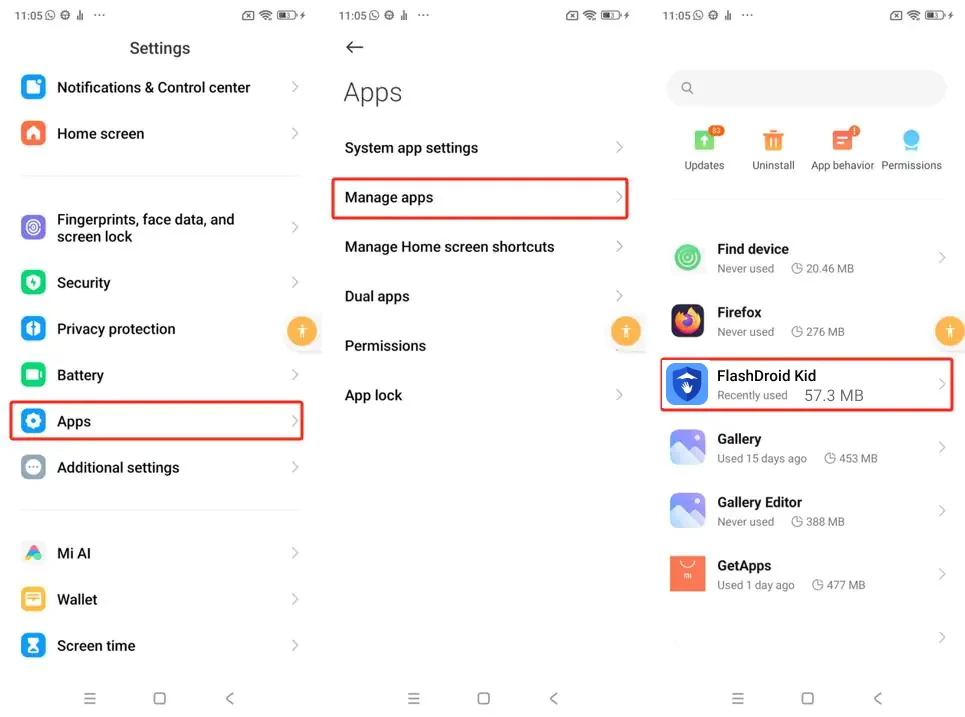
Step 1 — Open FlashDroid Kid in Manage apps
Go to Settings → Apps → Manage apps and tap FlashDroid Kid.
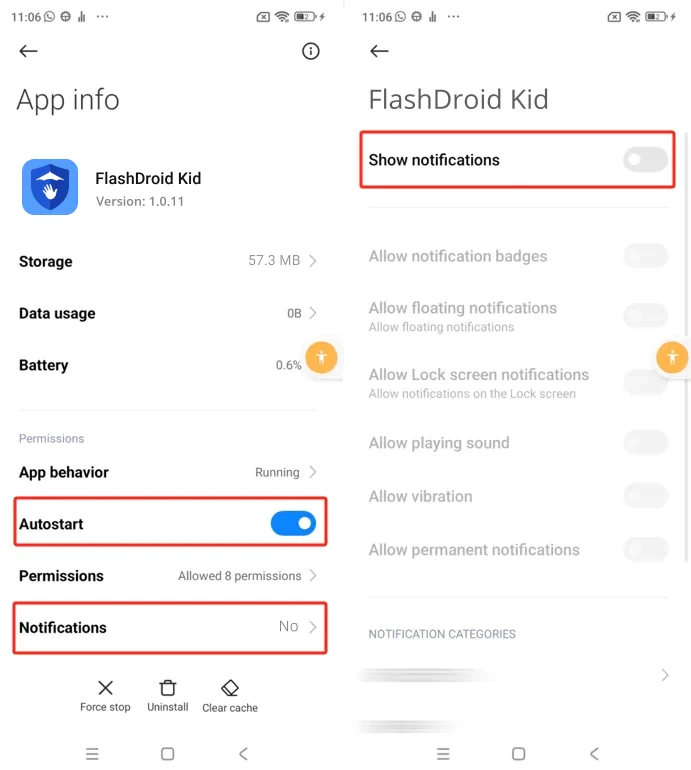
Step 2 — Turn on Autostart and notifications
On FlashDroid Kid's App info page, switch Autostart on — without it, MIUI will not let FlashDroid Kid come back after a reboot or a background clean-up. Then open Notifications and switch Show notifications on.
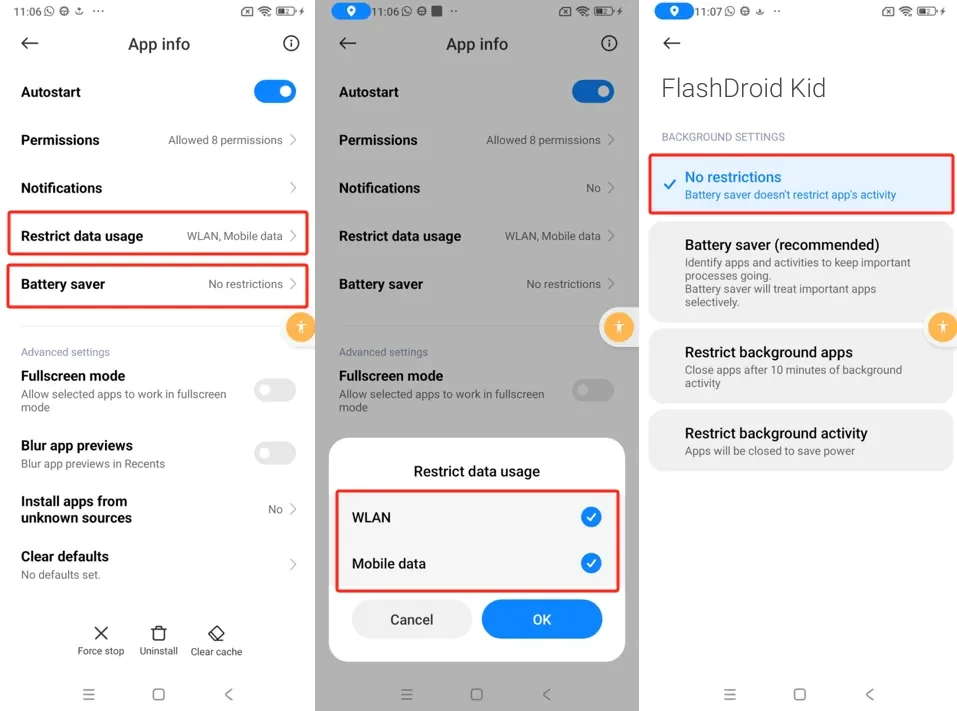
Step 3 — Allow data and set Battery saver to No restrictions
Still on App info: tap Restrict data usage and tick both WLAN and Mobile data, then OK. Then tap Battery saver and choose No restrictions.
Step 4 — Keep Ultra battery saver off
Go to Settings → Battery and make sure Ultra battery saver is off and the mode slider sits on Balanced. Ultra battery saver shuts down almost everything, FlashDroid Kid included.
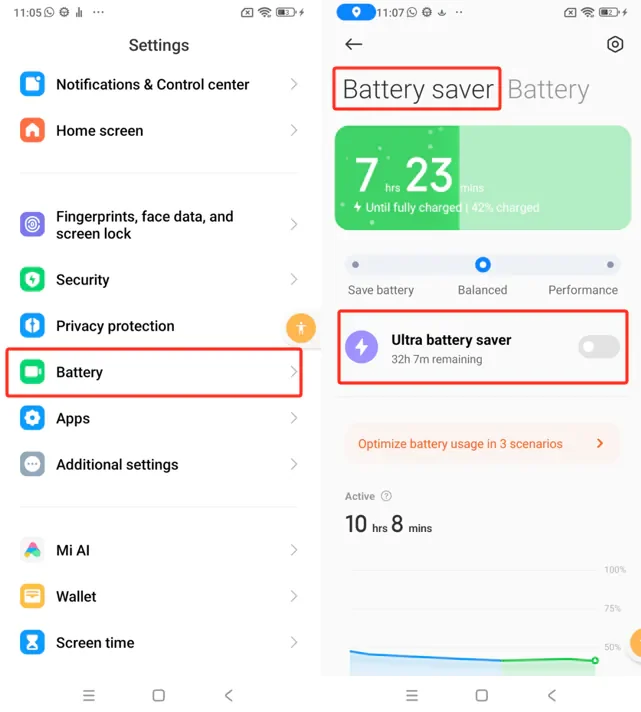
Step 5 — Stop lock-screen data cuts and Sleep mode
MIUI can cut mobile data and clear memory whenever the screen locks. In Settings → Battery, tap the gear icon, then set both Turn off mobile data when device is locked and Clear cache when device is locked to Never. Under Scenarios, keep Sleep mode off — it closes background apps and disables data overnight, which is exactly when you want FlashDroid Kid watching.
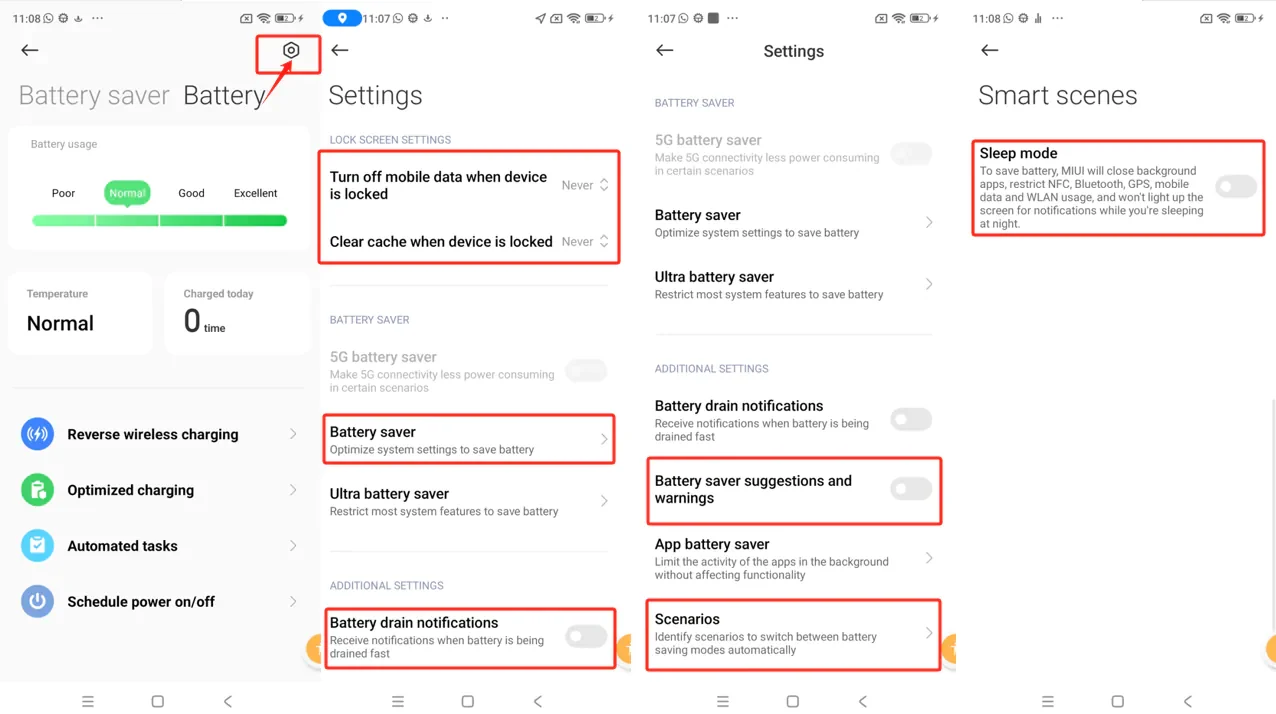
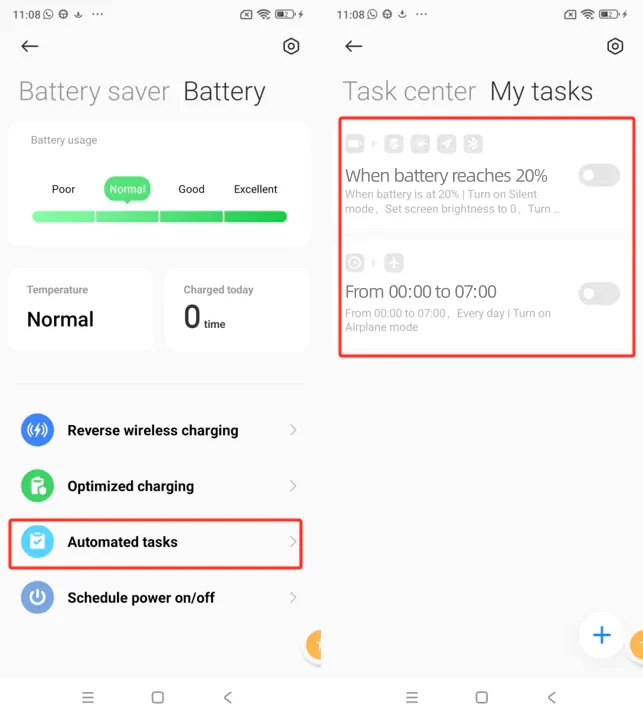
Step 6 — Check Automated tasks
Settings → Battery → Automated tasks: make sure no rule turns on Airplane mode or battery saving on a schedule (a common preset switches on Airplane mode from midnight to 7:00).
Check it worked
Your child's phone should show online in the FlashDroid app and stay online overnight, with no gaps in reports over 48 hours.
MIUI updates can silently reset Autostart and battery restrictions. After any MIUI or HyperOS update on the child's phone, re-check the Autostart toggle and the Battery saver "No restrictions" setting — they are the two that revert most often.
Something still off? Start from the overview — How to keep FlashDroid Kid running in the background on Android.
Related guides
See how FlashDroid works
Set the day’s limit together, keep distractions out of study hours, and switch to Exam Day in one tap. Works whether the phone is theirs or yours.
See how it works