How to Set Screen Time Limits on Android
Updated
Short answer
For a supervised child's Android phone, Google Family Link can set daily limits, weekly schedules, per-app limits, downtime and bonus time.
If you want more flexible family rules—such as different app policies, day modes or a dedicated extra-time request flow—you can also use a parental-control app such as FlashDroid.
Option 1: Use Google Family Link
Family Link is the best free place to start for many Android families.
Set a daily limit
In Family Link:
- Select your child.
- Open Screen time.
- Open Time limits.
- Turn on Daily limit.
- Choose the schedule for each day.
Google currently lets parents set different limits by day.
That is useful because Friday, Sunday and a school day may not need identical rules.
Set app limits
Family Link also supports per-app limits on supported Android devices.
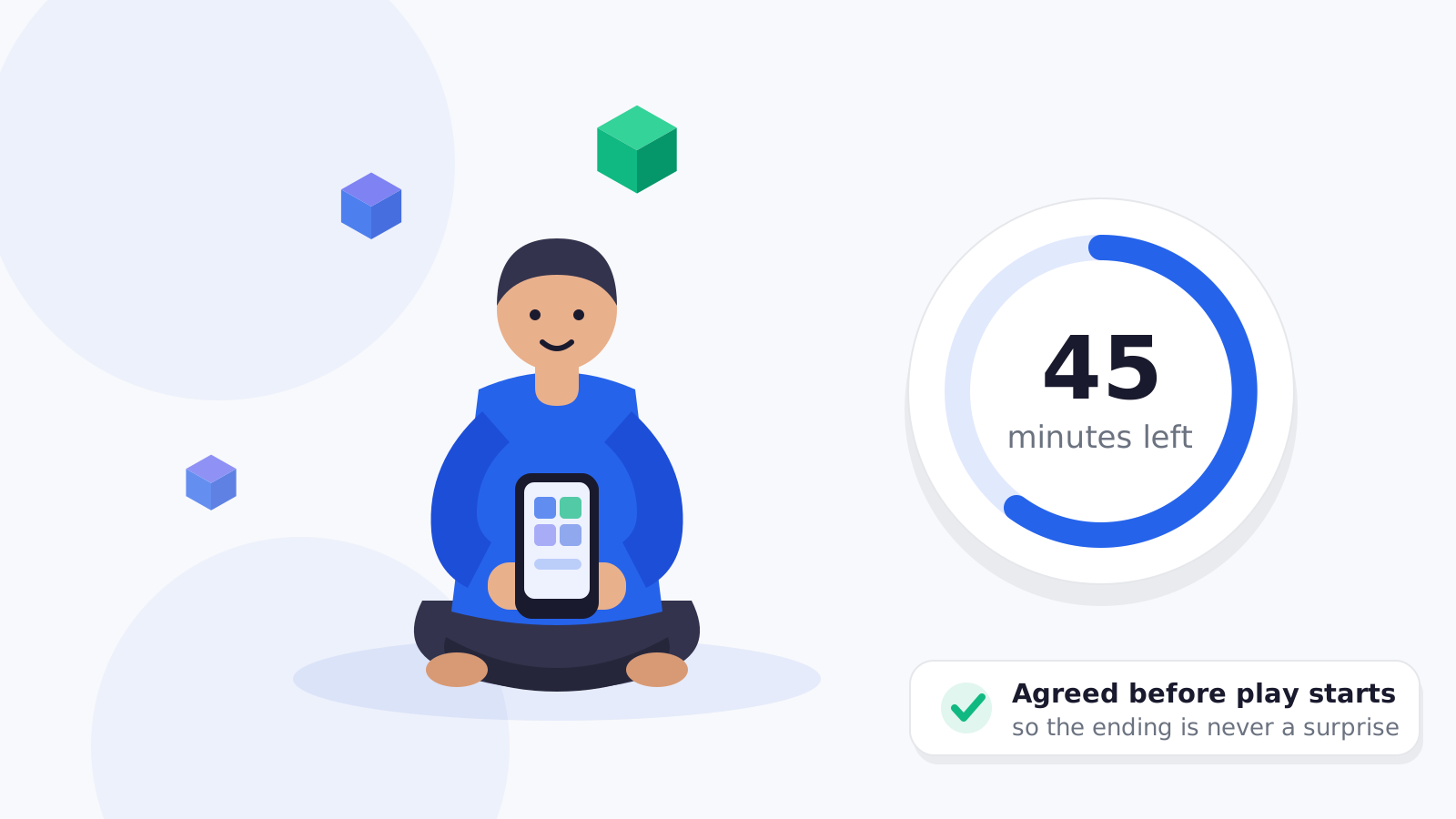
That means you can give a game 45 minutes without reducing the whole phone to 45 minutes.
Use unlimited-time apps
Selected apps can remain available after the daily limit is reached.
This is useful for:
- calling
- family communication
- transport
- school tools
Give bonus time
Google also supports bonus time without changing the normal daily rule.
This is a good model because an exception does not have to become tomorrow's default.
Option 2: Use Android's on-device parental controls
Current Android versions also expose on-device parental controls on supported devices.
These can manage areas such as:
- screen time
- app limits
- web-content filters
- store restrictions
Availability depends on Android version and device support.
For remote parent management across the child's devices, Family Link remains the more complete Google route.
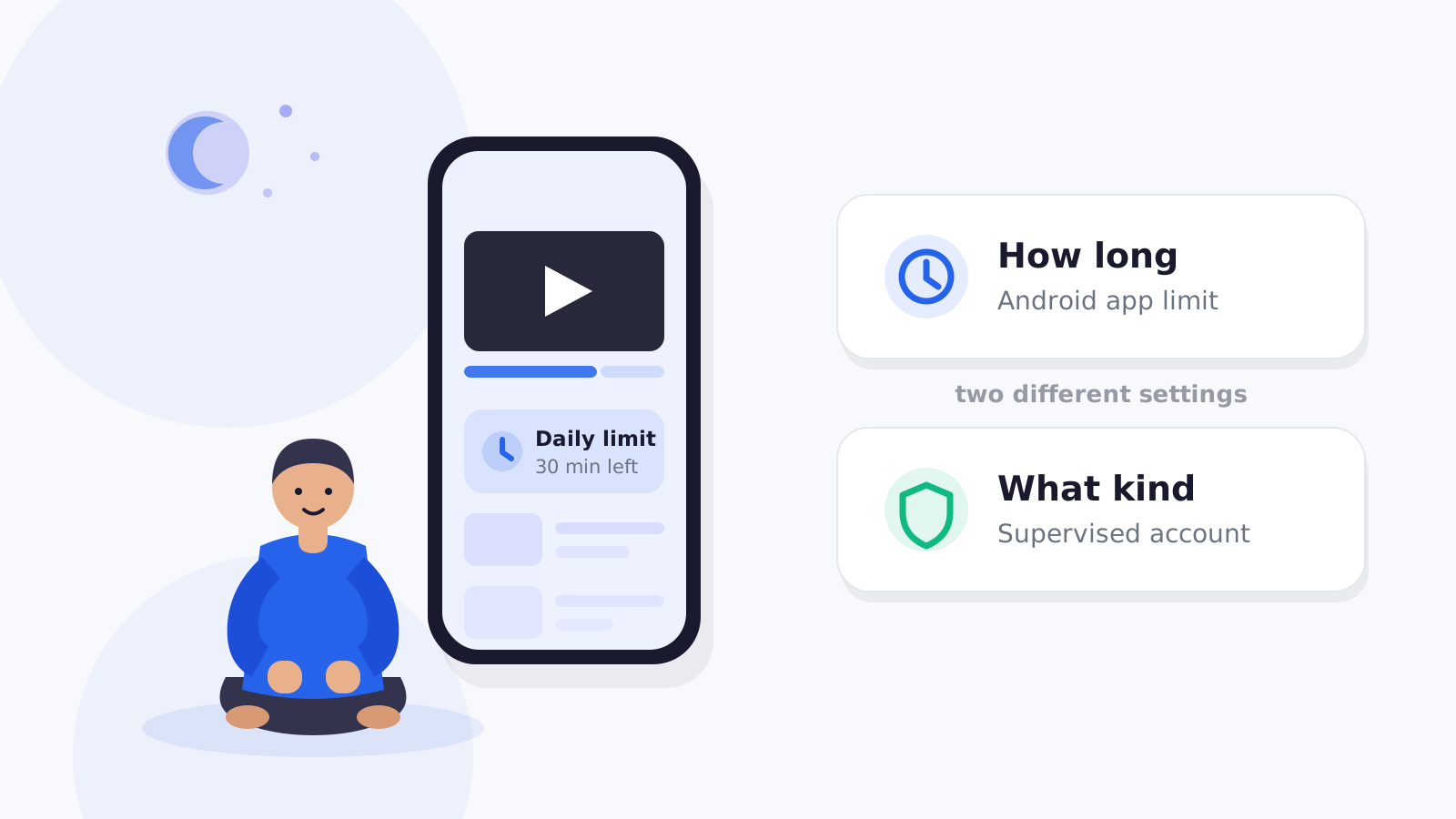
Daily limit vs app limit
This is the most important distinction.
Daily limit
Controls the overall amount of phone time.
Best when the problem is:
“The phone is taking too much of the day.”
App limit
Controls one specific app.
Best when the real problem is:
“Roblox is taking too much of the day.”
A good family setup often uses both.
Add a bedtime or downtime rule
Screen-time limits work better when the child knows when the phone becomes less available.
A bedtime rule can reduce repeated nightly negotiation.
Keep the wording clear:
“At 9:30 PM, entertainment apps stop.”
That is easier to understand than changing the rule every evening.
What about homework?
Avoid a setup that blocks the tools a child genuinely needs for school.
Consider keeping selected apps available:
- classroom apps
- browser or research tool if appropriate
- communication
- dialer
- maps
Then limit entertainment separately.
How FlashDroid approaches screen time
FlashDroid supports Android families with controls such as:
- overall daily screen limits
- per-app allow / limit / block
- bedtime rules
- always-allowed apps
- extra-time requests
- parent-created day modes you can name (for example, a mode you name Exam Day)
FlashDroid makes family rules easier to apply. It does not guarantee discipline or prevent addiction.
A practical setup
For many families:
School day
- normal daily allowance
- game/social app limits
- bedtime
- important apps always available
Weekend
- longer entertainment allowance
- same bedtime or slightly later family rule
Exam period
- stricter distracting-app rules
- learning/communication apps available
The exact numbers should come from the family's needs, not from a one-size-fits-all table.
Sources
- Google For Families — Manage your child's screen time
https://support.google.com/families/answer/7103340 - Google For Families — Set app time limits
https://support.google.com/families/answer/15957417 - Android Help — parental controls
https://support.google.com/android/answer/16766047
Frequently asked questions
Can I set different Android screen-time limits for each day?
Yes. Family Link supports weekly daily-limit schedules.
Can I limit only one app?
Yes. Family Link and FlashDroid both support app-specific controls, though the exact model differs.
Can calling still work?
Family Link allows emergency calling when a supervised phone locks, and also supports unlimited-time apps in supported configurations. FlashDroid can keep selected important apps always allowed.
Can my child ask for extra time?
Family Link supports bonus time controlled by the parent. FlashDroid also supports a child-to-parent extra-time request flow.
Should I use screen time or app blocking?
Use overall screen time when the whole phone is the issue. Use app rules when one or two apps are the problem.
Part of the Screen Time Guide for Parents: Rules That Work in Real Life.
Related guides
See how FlashDroid works
Set the day’s limit together, keep distractions out of study hours, and switch to Exam Day in one tap. Works whether the phone is theirs or yours.
See how it works