How to Block Apps on Your Child’s Android Phone
Updated
Short answer
If your child uses a supervised Google Account, Family Link can block supported apps or set app-specific daily limits.
If you want a simple Allow / Limit / Block rule for each app plus always-allowed exceptions, FlashDroid provides that model on Android.
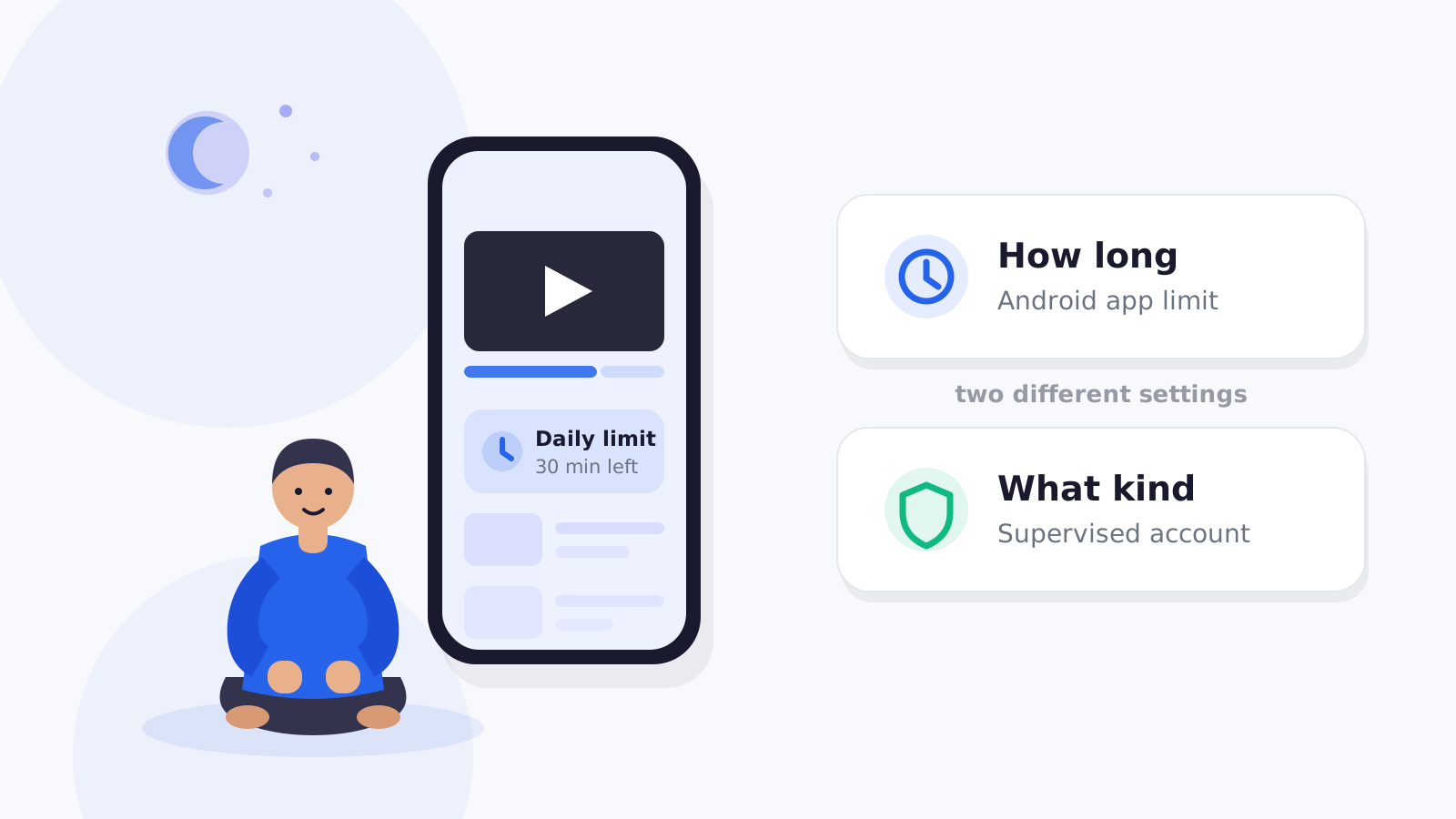
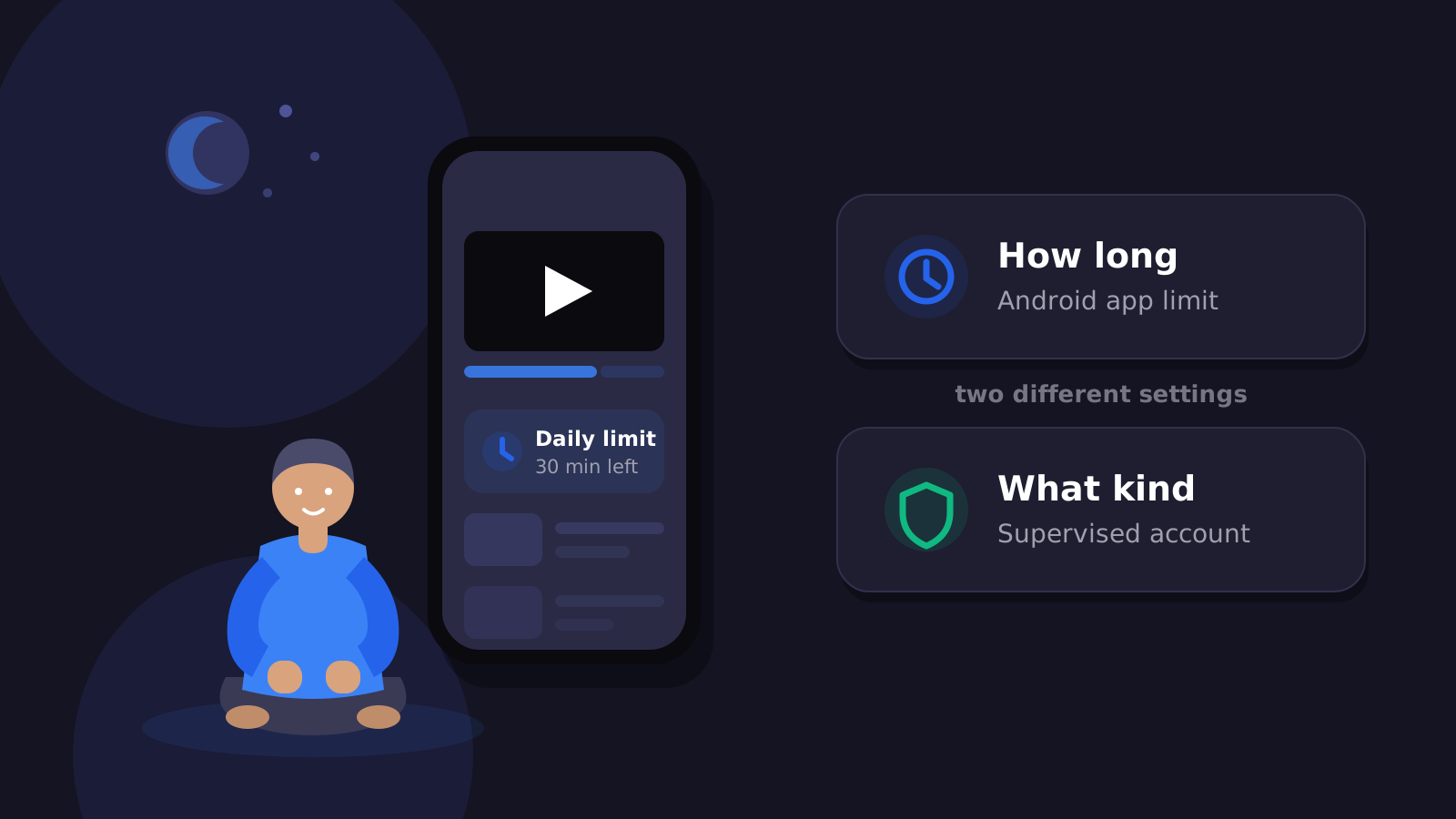
The important decision is whether the app should be completely unavailable or simply given a reasonable limit.
First decide: block or limit?
Parents often search “how to block an app” when what they really need is a limit.
Ask:
Is the app allowed, but used too much?
Use a daily limit.
Is the app inappropriate or against a family rule?
Block it.
Is it useful and not a problem?
Leave it allowed.
This gives children a clearer and more proportionate rule.
How to block an app with Google Family Link
Google Family Link lets parents block or allow supported apps for supervised children.
Google currently says a block may take about five minutes, or until the device connects to the internet.
That detail matters.
Remote app blocking should not be marketed as an instantaneous “kill switch.”
If the child is actively using the app when a Family Link block arrives, Google currently provides a short warning before the app is blocked.
How to set a daily app limit
Family Link also lets parents set a specific daily time limit.
This is useful for:
- Roblox
- YouTube
- social apps
- games
- streaming apps
A limit gives the child predictable access without leaving the app unlimited.
Keep important apps available
A parental-control setup should not accidentally make the phone useless.
Google supports “Unlimited time” apps in supported supervised-device setups.
FlashDroid uses an always-allowed concept for important apps.
A family might keep:
- dialer
- messaging with parents
- maps
- school app
- safety app
available while games are limited.
How FlashDroid handles apps
FlashDroid uses a simple app-level rule:
Allow
The app remains available normally.
Limit
Give the app its own daily time allowance.
Block
Apply a block rule to the child device.
Always allowed
Keep selected important apps available through other restrictions where supported by the product rule.
Remote changes are synced rules
This is worth explaining honestly.
A parent changes a rule on their phone.
The rule is then synced to the child's phone and applied there.
Network availability and device conditions can affect how quickly a remote change arrives.
So avoid claims such as:
- instant kill
- zero-delay blocking
- impossible to bypass
A better promise is:
Change the family rule from your phone. FlashDroid applies it on the child device when the rule syncs.
Do not block the whole phone when one app is the problem
If one game consumes two hours a day, a whole-device ban may be unnecessarily broad.
Try:
- one game limit
- social-app limit
- bedtime app block
- daily overall screen limit as a second layer
The more precisely the rule matches the problem, the easier it is to explain.
What if my child installs another game?
App-install approval is a separate control from app blocking.
Google Family Link can manage Google Play approvals for supervised accounts.
FlashDroid product content should only claim install-request functionality where the current public build supports it.
Sources
- Google For Families — Manage Google Play apps
https://support.google.com/families/answer/7103028 - Google For Families — Set app time limits
https://support.google.com/families/answer/15957417
Frequently asked questions
Can I block a single app without blocking the whole phone?
Yes. Family Link and FlashDroid both support individual app controls.
Can I block YouTube but keep calling available?
Yes, with the appropriate app-specific rules. Keep calling or other important apps in an allowed/unlimited category.
Does the app stop instantly?
Do not assume that. Remote rules need to reach the child device. Google itself documents a short delay for Family Link blocks.
Can my child use the app again tomorrow?
That depends on whether you blocked it completely or set a daily limit.
Is app blocking impossible to bypass?
No responsible parental-control product should promise that.
Related guides
See how FlashDroid works
Set the day’s limit together, keep distractions out of study hours, and switch to Exam Day in one tap. Works whether the phone is theirs or yours.
See how it works